How to add a video to your Shopify homepage: sections, autoplay, size and loading
Every way to put a video on a Shopify homepage, checked in the code of Dawn and Horizon: the Video section, a hero background, Custom Liquid and apps. What autoplays, what plays with sound, what size to export and what each option adds to the page.
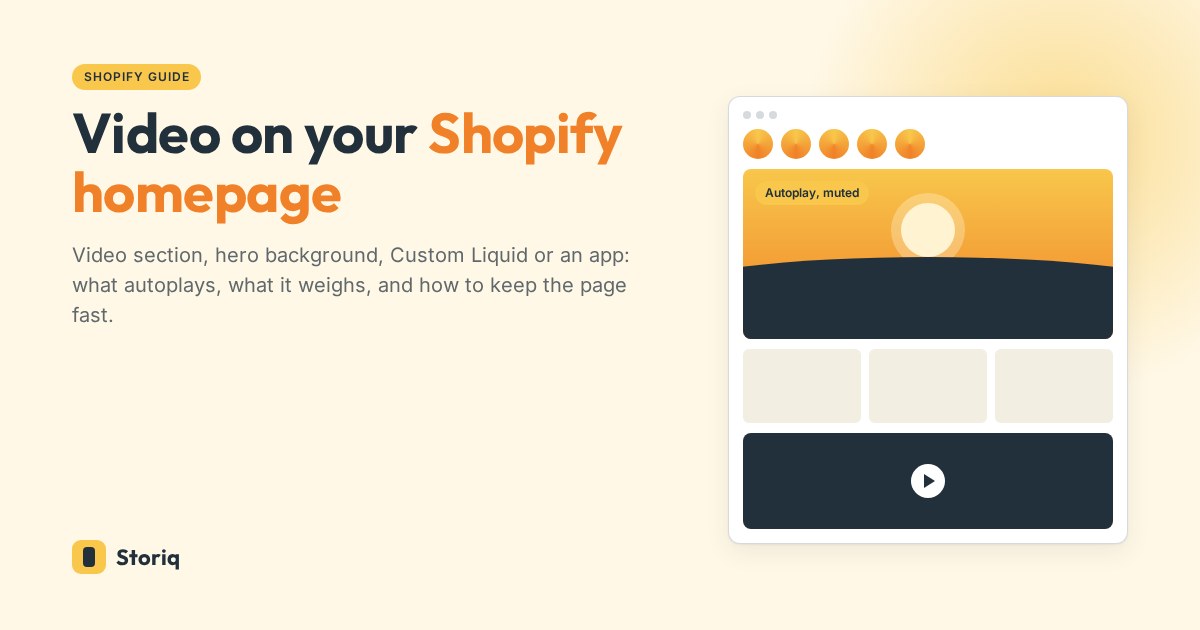
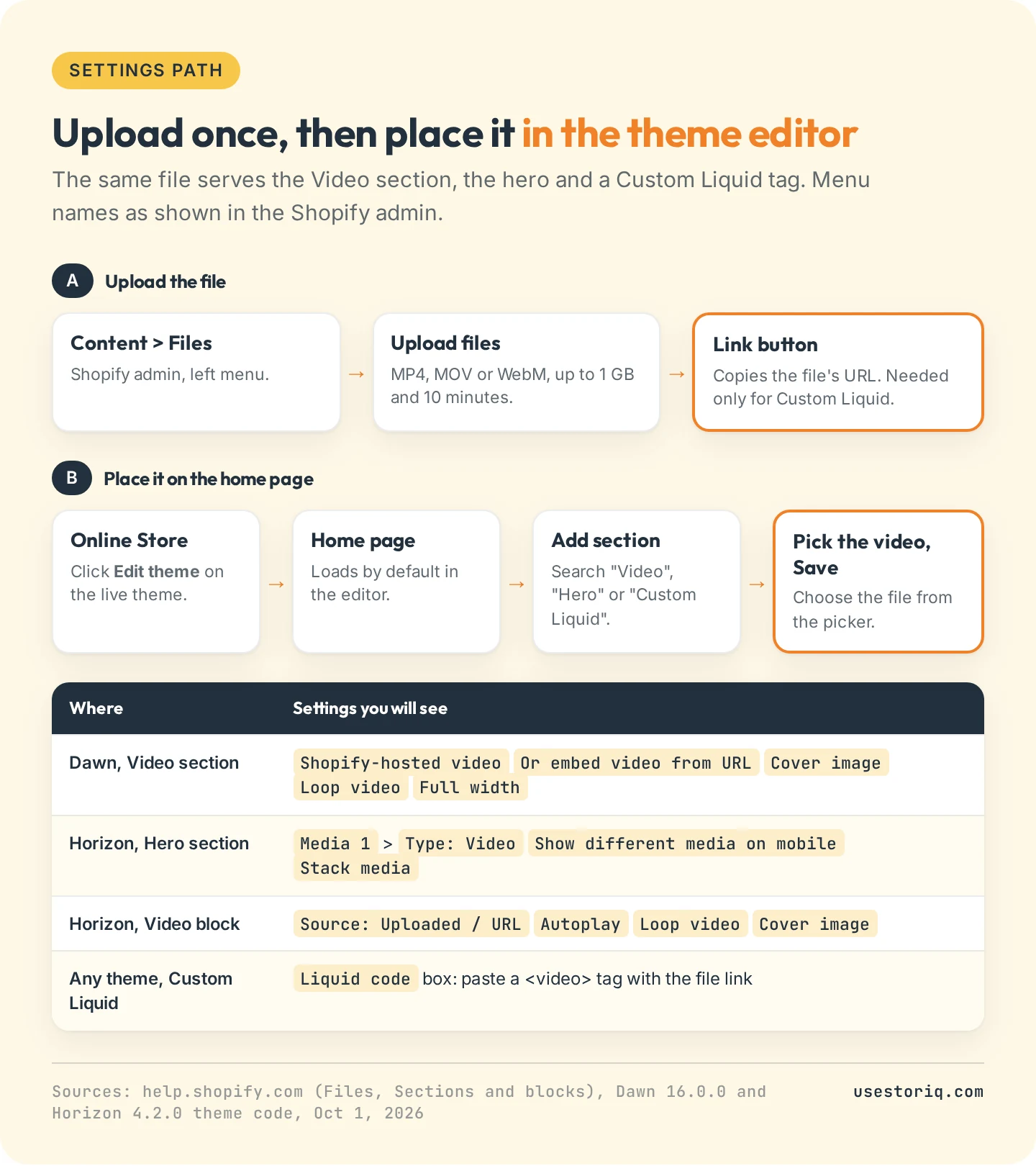
To add a video to your Shopify homepage, upload the MP4 file in Content > Files, then go to Online Store, click Edit theme, and on the home page that opens by default click Add section. Choose the Video section, or a hero or banner section that accepts video, select your file and save. What changes from one theme to the next is how the Shopify homepage video behaves: whether it starts on its own, whether it has sound, and how much weight it adds to the page.
We read the code of Shopify's two reference themes, Dawn 16.0.0 and Horizon 4.2.0, and the matching Help Center pages on October 1, 2026. Dawn's Video section never autoplays and loads nothing but a cover image until the shopper clicks. Horizon's Hero section plays a muted loop the moment the page opens, with no cover image and no controls.
Shopify homepage video options compared
There are four routes: the Video section and a hero or banner that accepts video (both built into the theme, no code), a Custom Liquid section (a few lines of HTML, any theme), and an app.
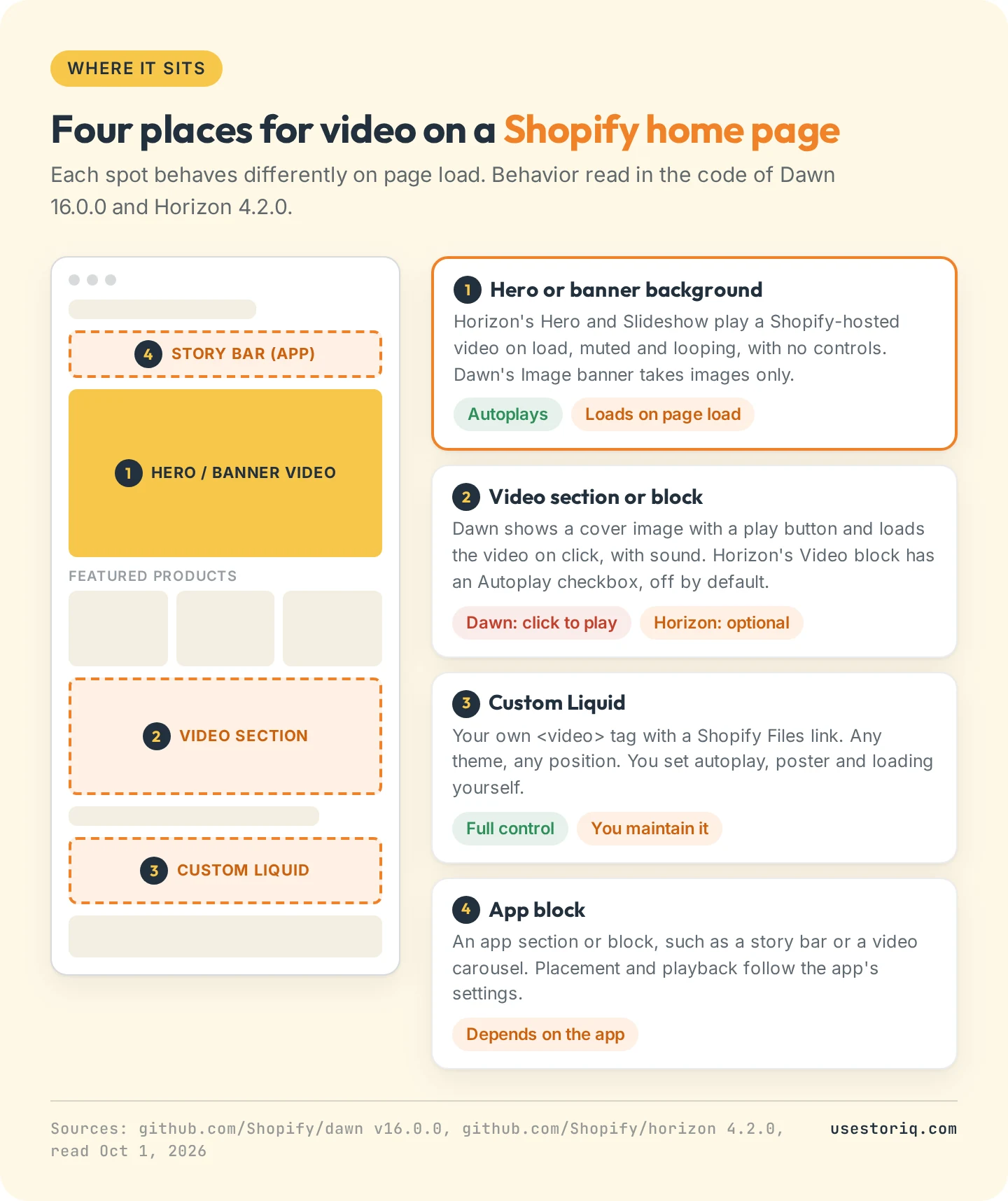
A hero video is the first thing a visitor sees, so it costs page weight on every visit. A Video section further down costs little until someone clicks it. For product pages, our guide to adding video to a Shopify product page covers the five product-level methods, and our page on adding a video to a Shopify collection page covers the collection header, a video for one collection and the product grid.
Step 1: upload the MP4 to Shopify Files
Every route starts with the same file. In your admin, go to Content > Files and click Upload files. You can select up to 20 files at once. According to Shopify's file requirements, a video can be MP4, MOV or WebM, up to 1 GB, 10 minutes long and 4096 pixels on its longest side. Our page on Shopify video size and format lists every limit and the export settings Shopify recommends. They apply to homepage videos unchanged.
Three details from the same page matter here:
- Trial stores cannot upload video. The file formats allowed on a trial plan are JS, CSS, GIF, JPEG, PNG, JSON, CSV, PDF, WebP and HEIC.
- The Link button next to a file copies its URL to your clipboard. You only need it for the Custom Liquid route, which our guide to adding an MP4 video to Shopify without YouTube also applies to product pages, pages and blog posts.
- Replacing a file changes its link. Shopify states that "the file name stays the same, but the file's link changes". A link pasted into Custom Liquid code breaks after a replacement, so update the code when you swap the video.
The Files page also lets you update a video cover image. Dawn's Video section uses that cover as its poster for a Shopify-hosted video.
Method 1: the Video section
In Dawn, click Add section and choose Video. The section takes either a file under the Shopify-hosted video heading or a YouTube or Vimeo link under Or embed video from URL. The link is only used when no Shopify-hosted video is selected. Other settings: Cover image, Video alt text, Loop video (off by default) and Full width.
Dawn shows the poster with a play button. On click, the player loads and plays with sound and controls. There is no autoplay setting, which makes it the lightest option: until the click, the browser downloads one image.
In Horizon, video is a block rather than a section. Add a Custom section, then click Add block and pick Video. You can also use the Media with text section and set its media block's Type to Video. The Video block has a Source setting (Uploaded or URL), an Autoplay checkbox that is off by default with the note "Videos will be muted by default", and Loop video, which is on by default. With Autoplay off, the block shows the cover image and a play button, and loads the video on click.
Dawn's Collage section also has a Video block, but it accepts YouTube and Vimeo links only. Its own help text says the "video plays in a pop-up if the section contains other blocks".
Method 2: a video background in the hero or banner
To add a video background banner to your Shopify homepage, you need a hero or banner section with a video option. Horizon has one. Dawn does not: its Image banner, Slideshow and Image with text sections accept images only.
In Horizon's Hero section, open Media 1 and set Type to Video, then select your file. The section holds two media side by side (Media 1 and Media 2). The code renders the video with autoplay, loop and muted all on, controls off, and no poster image. The hero plays silently as the page opens, repeats, and offers no pause button.
Two Hero settings handle phones. Show different media on mobile lets you set a separate video or image for small screens, which is how you serve a vertical cut to phones. Stack media puts Media 1 and Media 2 on top of each other instead of side by side.
Horizon's Slideshow works the same way per slide: set the slide's media type to Video and it autoplays muted and loops, with the video's cover image displayed behind it while the file loads.
In Dawn, a moving banner means a full-width Video section (which still waits for a click) or Method 3.
Method 3: Custom Liquid with a Shopify Files link
A Custom Liquid section gives you a video that autoplays in any theme, including Dawn. Click Add section, choose Custom Liquid, and paste a video tag into the Liquid code box, with the link copied from Files:
<video autoplay muted loop playsinline preload="metadata"
  poster="PASTE-THE-POSTER-IMAGE-LINK.jpg"
  style="display:block;width:100%;height:auto">
  <source src="PASTE-THE-VIDEO-FILE-LINK.mp4" type="video/mp4">
</video>
What each attribute does:
mutedlets the video start on its own (see the autoplay section).playsinlinekeeps it inside the page on iPhone. Without it, iPhone plays the video in fullscreen.postershows a still until the first frame arrives. Export a frame as a JPG, upload it to Files and paste its link.preload="metadata"fetches only the video's basic information before playback, the same value Shopify'svideo_tagfilter outputs.
The trade-offs: no settings, only code; a link that breaks when you replace the file; and a plain video tag plays the one file its link points to. Sections built on Shopify's video_tag Liquid filter also get an HLS stream, which adapts quality to the shopper's connection (except when loop is on). If a developer maintains your theme, a custom section with a video picker and video_tag keeps those benefits.
Method 4: an app
Apps from the Shopify App Store add their own section or app block, placed from the theme editor like any other block: video carousels, shoppable video grids, story bubbles. Playback and page weight then follow the app's code rather than your theme's. Before installing, check whether its videos load with the page or only when opened, and whether they autoplay.
Shopify homepage video autoplay and sound
Every route runs into the same browser rules. Chrome's autoplay policy says it in one line: "Muted autoplay is always allowed". Autoplay with sound needs an interaction from the visitor first, such as a click or a tap.
Safari on iPhone is stricter. According to WebKit's video policies for iOS, a video autoplays without a gesture only if it is muted or has no audio track, it starts only once it is visible on screen, and it pauses when the shopper scrolls it out of view. A video without playsinline still requires fullscreen on iPhone.
Shopify's media guidelines for theme developers point the same way: video "should default to paused on page load", and "If a video plays on page load, it should be muted by default." On product pages, the gallery adds its own limits: see what Dawn and Horizon do in our section on Shopify product page video autoplay.
A homepage video that autoplays therefore plays silently, on every theme and browser. Plan for it:
- Put the message on screen. A voiceover-only message is lost.
- Export background loops with no audio track. iPhone treats them as silent, and the file is smaller.
- If the video needs sound, use a click-to-play section: the click is the interaction browsers wait for.
- Give shoppers a way to stop motion. Accessibility guidelines (WCAG) ask for a pause control on moving content that starts on its own, and Horizon's Hero shows no controls.
Shopify homepage video size and format
Export an MP4 in H.264, Shopify's listed video codec, with AAC audio if the video keeps its sound. Shopify recommends 16:9, 9:16, 4:3, 3:4 or 1:1, at resolutions such as 1920x1080 or 1280x720 (or the vertical 720x1280), and 25, 30 or 60 frames per second.
On the home page, the section decides the frame. Shopify's Help Center explains it for banner images: the section has its own shape, and a wide image on a tall phone screen is cropped left and right. A 16:9 video in a tall banner loses its sides the same way. Two fixes: keep the subject in the center of the frame, or, in Horizon's Hero, use Show different media on mobile with a 9:16 version. Dawn's Video section avoids the problem by sizing its frame to the poster's aspect ratio.
Keeping the home page fast
Shopify publishes the bitrates it encodes MP4 video to: 0.9 to 1.5 Mbps at 480p, 1.6 to 4.5 Mbps at 720p, and 2.5 to 7.2 Mbps at 1080p. Multiply by duration and you get the download. A 15-second clip weighs 1.7 to 2.8 MB at 480p, 3.0 to 8.4 MB at 720p, and 4.7 to 13.5 MB at 1080p. A looping hero downloads that on every visit.
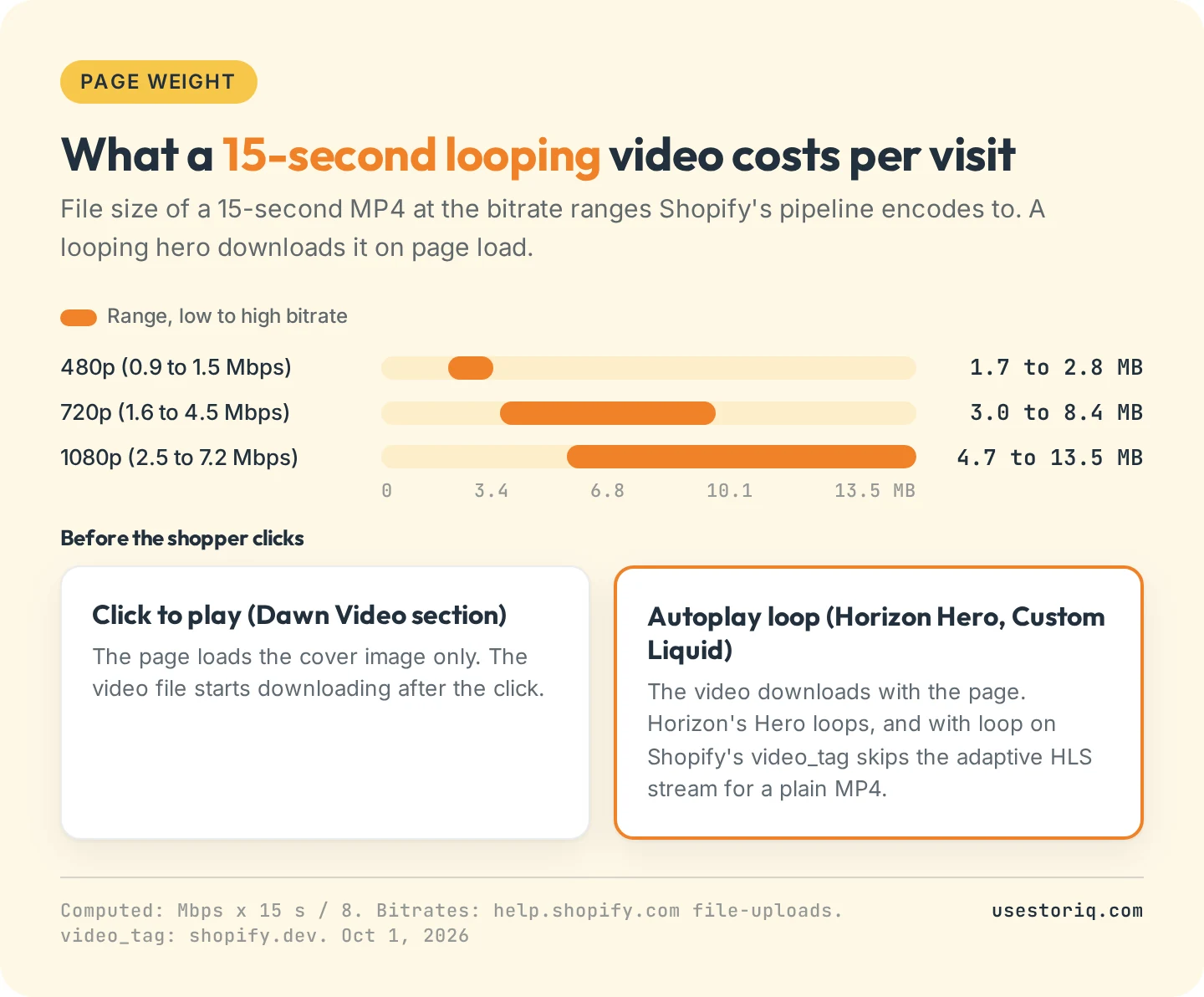
Looping has a side effect. Shopify's video_tag documentation states that "If loop is enabled, the HLS source is not used in order to allow progessive download to cache the video". A looping background gets a plain MP4 file, not a stream that adapts to the connection.
The same page sets the lazy-loading rule: video_tag sets loading to lazy automatically "for videos in sections further down the page", and "You shouldn't lazy load videos above the fold". A hero at the top loads at once by design.
What keeps a homepage video fast:
- Click to play where you can. Dawn's Video section and Horizon's Video block with Autoplay off load one image until the click.
- Short, silent loops for backgrounds. Keep only the seconds that carry the idea, and drop the audio track.
- A poster or a matching background color. Horizon's Hero renders no poster, so the section's background shows until the first frame arrives. Pick a color close to that frame.
- One autoplaying video per page. Shopify's guidelines for product media say that when several media show at once, all of them should wait for the shopper. The same logic fits a home page.
Which method to use
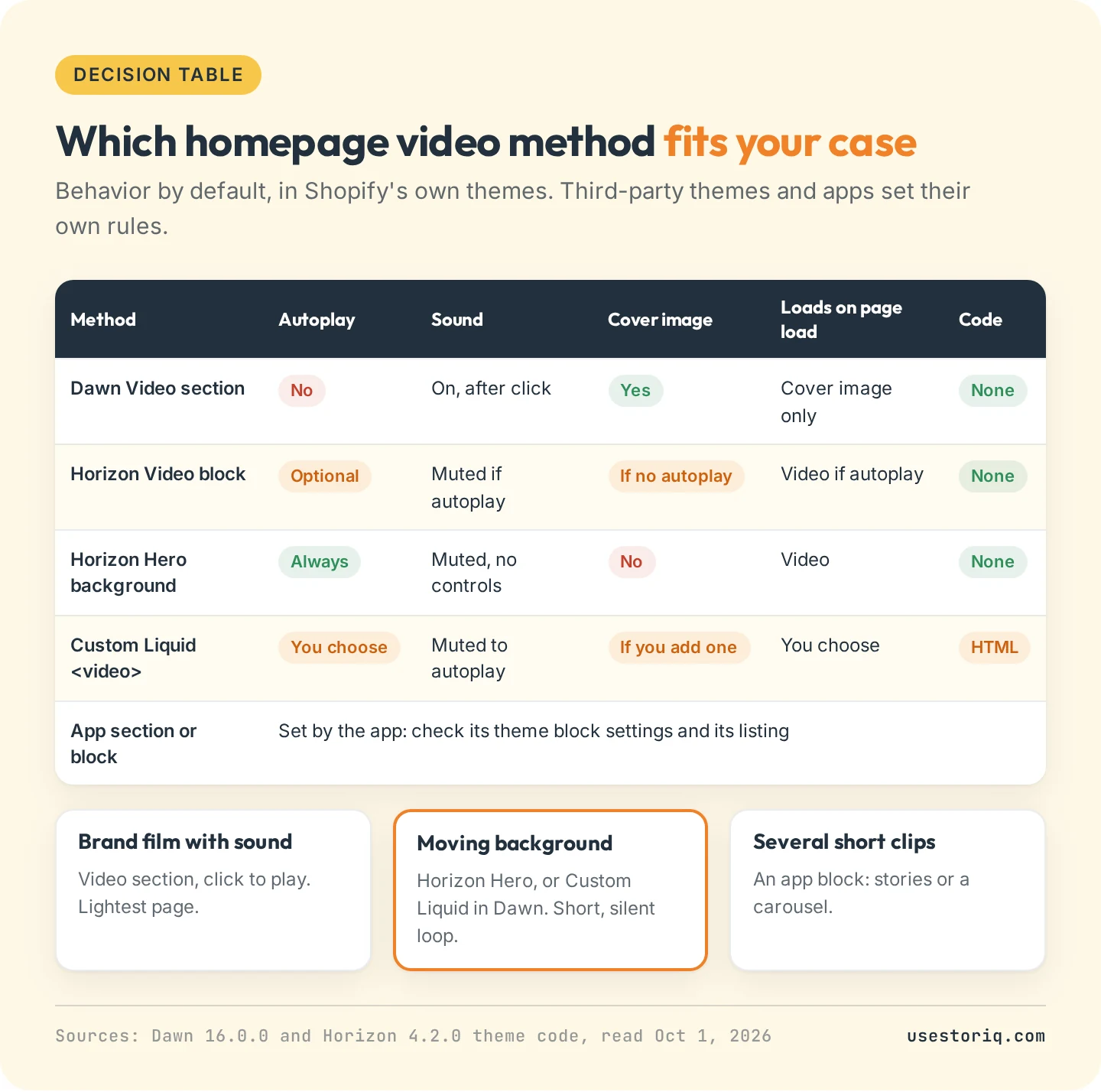
- A brand film with sound: the Video section, click to play.
- A moving background behind your headline: Horizon's Hero, or Custom Liquid in Dawn.
- Several short clips (new arrivals, a how-to, a drop): a video carousel or a row of stories, which plays each clip on demand.
Several short clips on the home page: stories
Stories suit a home page with more to show than one film. A row of bubbles sits under the header, and each opens a full-screen viewer where the shopper taps through short clips. Our guide to adding Instagram-style stories to Shopify covers what to film and where to place the bubbles, and the page on shoppable stories compares them with an embedded Instagram feed.
Storiq adds this story bar to your theme through a theme app block, with no code. The clips come from your Shopify Files library, so the file limits above still apply, and they are served by Shopify's CDN. Home page and collection placements are part of the Starter plan, at $9.99 per month with a 7-day free trial, along with product cards on slides that show the price read live from your catalog. The Free plan covers stories on product pages.
Frequently asked questions
How do I add a video to my Shopify homepage?
Upload the MP4 in Content > Files. Then go to Online Store, click Edit theme, and on the home page click Add section. Pick the Video section (Dawn) or the Hero section with its media type set to Video (Horizon), select your file and click Save. Themes from other developers name their sections differently, so check your theme's documentation.
How do I make my Shopify homepage video autoplay?
Use a section that autoplays, such as Horizon's Hero, or tick Autoplay on Horizon's Video block. Dawn's Video section has no autoplay setting, so Dawn stores need a Custom Liquid section with a video tag carrying the autoplay, muted, loop and playsinline attributes. Browsers only autoplay video that is muted.
Can I add an MP4 video to my Shopify homepage without YouTube?
Yes. Upload the MP4 to Content > Files and select it in your theme's video picker, or paste its link into a video tag in a Custom Liquid section. Shopify accepts files up to 1 GB and 10 minutes. YouTube or Vimeo is only needed for videos above those limits.
What video format is best for Shopify?
MP4 with H.264 video. Shopify accepts MP4, MOV and WebM uploads and lists H.264 as its supported video codec, with AAC, MP3 or Opus for audio. Its recommended resolutions include 1920x1080 and 1280x720, plus vertical versions such as 720x1280, at 25, 30 or 60 frames per second.
What size should a Shopify homepage video be?
For a full-width banner, a 16:9 export at 1920x1080 or 1280x720 matches Shopify's recommended resolutions. Keep a background loop short and silent: at Shopify's 1080p MP4 bitrates, 15 seconds of video weighs 4.7 to 13.5 MB. On phones a wide video gets cropped in a tall banner, so Horizon's Hero lets you set a separate vertical video for mobile.