How to add video to a Shopify product page: every method, from native to stories
Shopify gives you five native ways to put a video on a product page, and each one plays differently. This guide shows where each method displays, what it does with autoplay and sound, and when an app is the better tool.
To add a video to a Shopify product page, open the product in your admin, go to the Media section and click Upload new (or drag the file in). The video joins the product gallery next to your photos. That is the native method, and it covers most needs. Shopify offers four more: a YouTube or Vimeo link as product media, a Video section in the theme editor, an embed in the product description, and theme code. They differ in where the video shows and in how it plays.
All facts below come from Shopify's help center on product media and from the code of Shopify's own themes, Dawn 16.0.0 and Horizon 4.1.5, checked on 18 September 2026.
The five native methods compared
| Method | Where it shows | Hosting | Autoplay on page load |
|---|---|---|---|
| Product media, uploaded file | In the product gallery | Shopify | Set by the theme: none in Dawn or in Horizon's gallery |
| Product media, YouTube or Vimeo link | In the product gallery | YouTube or Vimeo | Set by the theme |
| Theme Video section or block | Anywhere on the product template | Shopify, YouTube or Vimeo | Dawn: no. Horizon: optional, muted |
| Product description embed | Inside the description text | YouTube or Vimeo | No |
Theme code (video_tag) |
Wherever the developer puts it | Shopify | Yes, if coded |
Method 1: upload the video as product media
This is the method to start with. In the product page of your admin, the Media section accepts a new upload, a drag and drop, or a file already in Content > Files. On the mobile app, you can film directly with Camera.
The file has to meet Shopify's limits: MP4, MOV or WebM, up to 10 minutes, 1 GB and 4K. Our page on Shopify product video size and format lists every limit and the recommended export settings.
Where it shows: in the gallery, among your photos. One exception to know: the first media item is the product's main image, displayed on collection pages, in the cart and at checkout. Keep a photo in first position unless you want a video frame there.
How it plays depends on your theme. In Dawn, the video shows a poster with a play button and starts only when the shopper clicks. The only setting is Loop video. In Horizon, the product gallery offers Video looping and shows play and pause only, with no autoplay option.
Limits: a video cannot be a variant image, and a product holds 250 media at most.
Method 2: link a YouTube or Vimeo video as product media
Same Media section, but click Select existing, then Add from URL. Paste a standard link: youtube.com/watch?v= for YouTube, vimeo.com/ followed by the ID for Vimeo.
Use it for long or heavy videos. The 10-minute and 1 GB limits do not apply to embedded links. The rules instead:
- The YouTube video must be Public or Unlisted, and a Vimeo video must allow embedding.
- YouTube Shorts links are refused. Rewrite them to the standard format.
- Any other host is refused, including Google Drive and Dropbox links.
The video then plays in a YouTube or Vimeo frame inside your gallery, with that platform's controls and logo. For a 20-second product clip, an uploaded file looks cleaner.
Method 3: add a Video section in the theme editor
Open Online Store > Themes > Customize, switch to the product template, and add the Video section (Dawn) or Video block (Horizon). It sits wherever you drop it: under the gallery, after the description, above the reviews.
In Dawn, the section takes a Shopify-hosted video or, if none is selected, a YouTube or Vimeo URL. It shows a cover image and a play button, and plays after a click, with sound and controls. Settings: cover image, alt text, Loop video, full width. There is no autoplay setting.
In Horizon, the block has a Source setting (Uploaded or URL), an Autoplay checkbox off by default with the note "Videos will be muted by default", and Loop video, on by default.
One catch: a section added to the product template appears on every product that uses that template. To show a different video per product, create alternate product templates, or use method 1.
Method 4: embed a video in the product description
In the description editor, the Insert video button accepts YouTube or Vimeo embed code. Shopify's own help page notes that raw YouTube embed code "won't be as responsive to different screen sizes", and the description editor has a 64 KB content limit.
The video lands in the middle of the text, often below the fold. Use this method only when the video explains something the text is describing, such as an assembly step.
Method 5: add the video in theme code
A developer can render any Shopify-hosted video with the Liquid filter video_tag, and set autoplay, loop, muted and controls freely. Shopify's documentation adds two rules: do not lazy load a video that sits above the fold, and when a page has several videos, only the active one should play.
This is the only native route to a video that autoplays anywhere on the page in Dawn. It also means maintaining custom code across theme updates.
Autoplay and sound: what browsers and Shopify allow
Every method runs into the same browser rule. Chrome's autoplay policy states: "Muted autoplay is always allowed." Autoplay with sound needs a prior interaction from the visitor. Shopify's media guidelines for theme developers go further: video "should default to paused on page load", and "If a video plays on page load, it should be muted by default."
So design product videos to work without sound. Put the key information on screen as text, and treat audio as a bonus for the shoppers who turn it on.
When several short clips beat one video: stories
The native methods handle one video well. They handle five short clips badly. Five videos in a gallery means five thumbnails the shopper has to open one by one, and none of them points to the product while it plays.
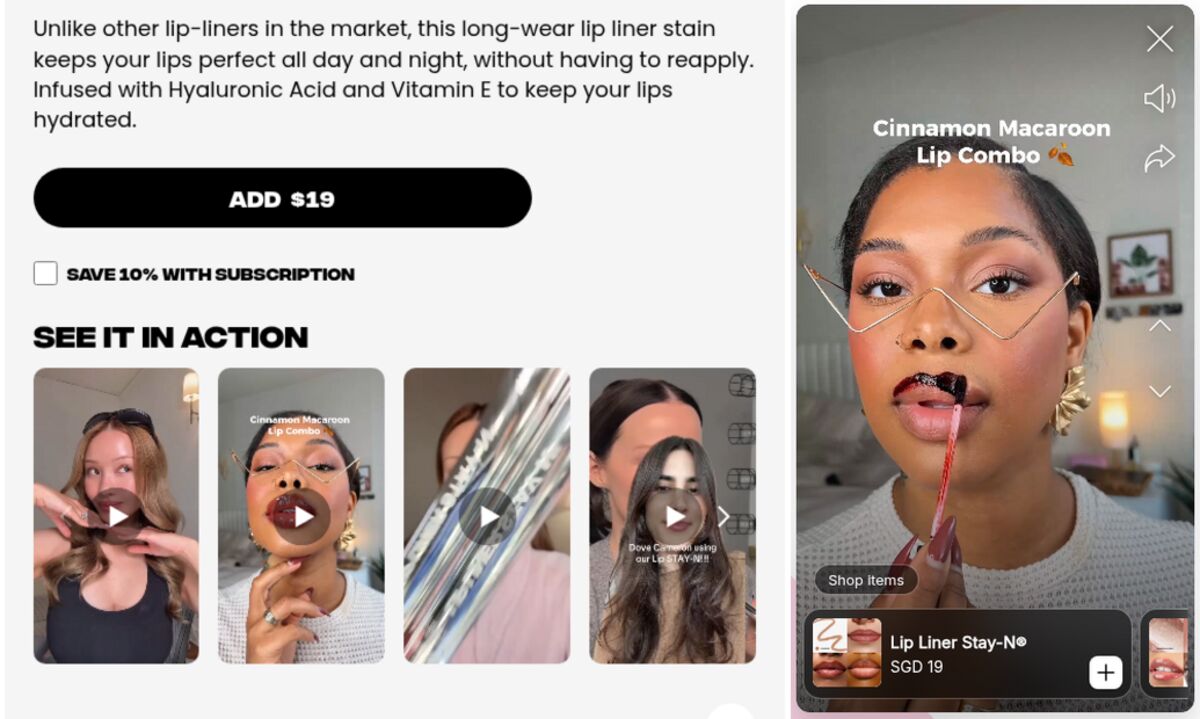
That is the case the story format solves. The clips play in sequence in a full-screen viewer, the shopper taps to skip, and a slide can carry a product card. Our guide to adding Instagram-style stories to Shopify covers what to film and where to place them, and the page on what shoppable video is explains the formats.
Storiq adds these stories to your product pages through a theme app block, with no theme code. The videos stay in your Shopify Files library, so everything in this guide about formats and limits still applies. On paid plans, a slide can carry a product card with its price read live from your catalog.
Frequently asked questions
How do I put a video on my Shopify product page?
Open the product in your Shopify admin, go to the Media section and click Upload new, or drag the video file in. The video joins the product gallery. The file must be an MP4, MOV or WebM under 10 minutes and 1 GB, and your theme must support video, which all Online Store 2.0 themes built by Shopify do.
How do I add a YouTube video to a Shopify product page?
In the product's Media section, click Select existing, then Add from URL, and paste the link in the standard youtube.com/watch?v= format. The video must be Public or Unlisted. YouTube Shorts links are refused unless you rewrite them to the standard format.
How do I get a video to play automatically on Shopify?
It depends on your theme. In Dawn, product videos and the Video section wait for a click. In Horizon, the Video block has an Autoplay setting, and autoplayed videos are muted. Browsers block autoplay with sound, and Shopify's own guidelines say a video playing on page load should be muted.
Can I add a video to a Shopify product page for free?
Yes. Uploading a video as product media, linking a YouTube or Vimeo video, and adding the theme's Video section are all included in every Shopify plan. Only stores on a trial plan cannot upload video files.