How to add a video carousel to Shopify: theme section, code or app
Three ways to put a row of swipeable videos on a Shopify store, checked in the code of Dawn and Horizon and on the App Store on October 1, 2026: Horizon's Carousel section, a custom section you paste in, or a carousel app. What each one loads, costs and tags.
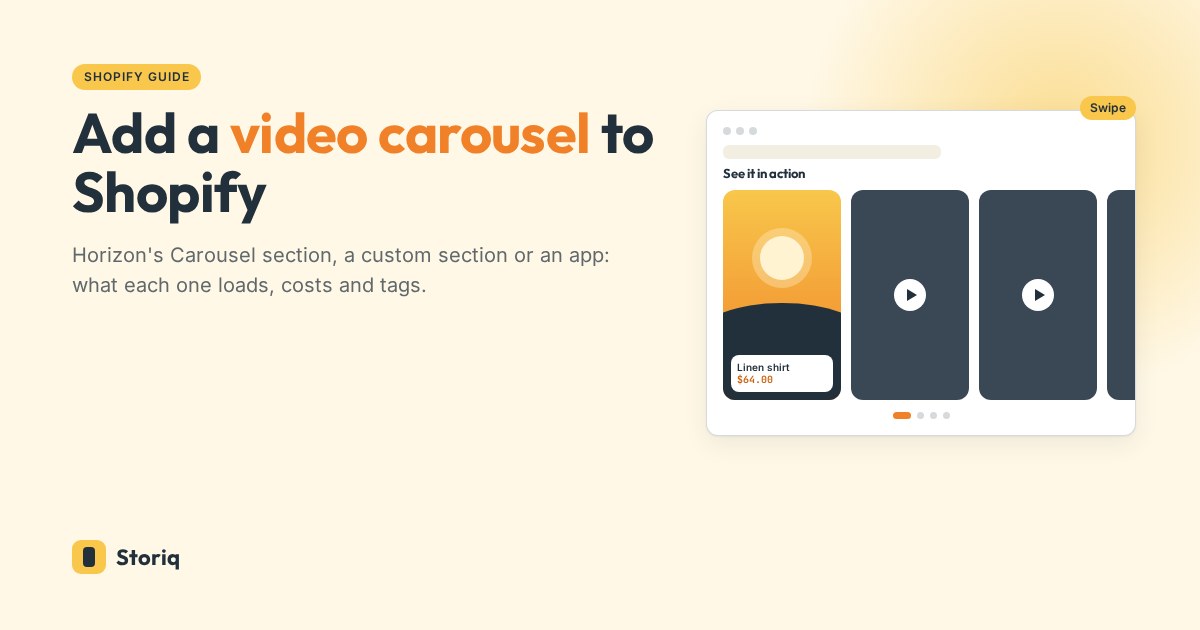
To add a Shopify video carousel, start with your theme. In Horizon, click Add section, choose Carousel, and put a Video block in each Card: no code, no app. Dawn has no section that slides videos, so a Dawn store needs a custom section (about 60 lines of Liquid, CSS and JavaScript) or a carousel app from the Shopify App Store.
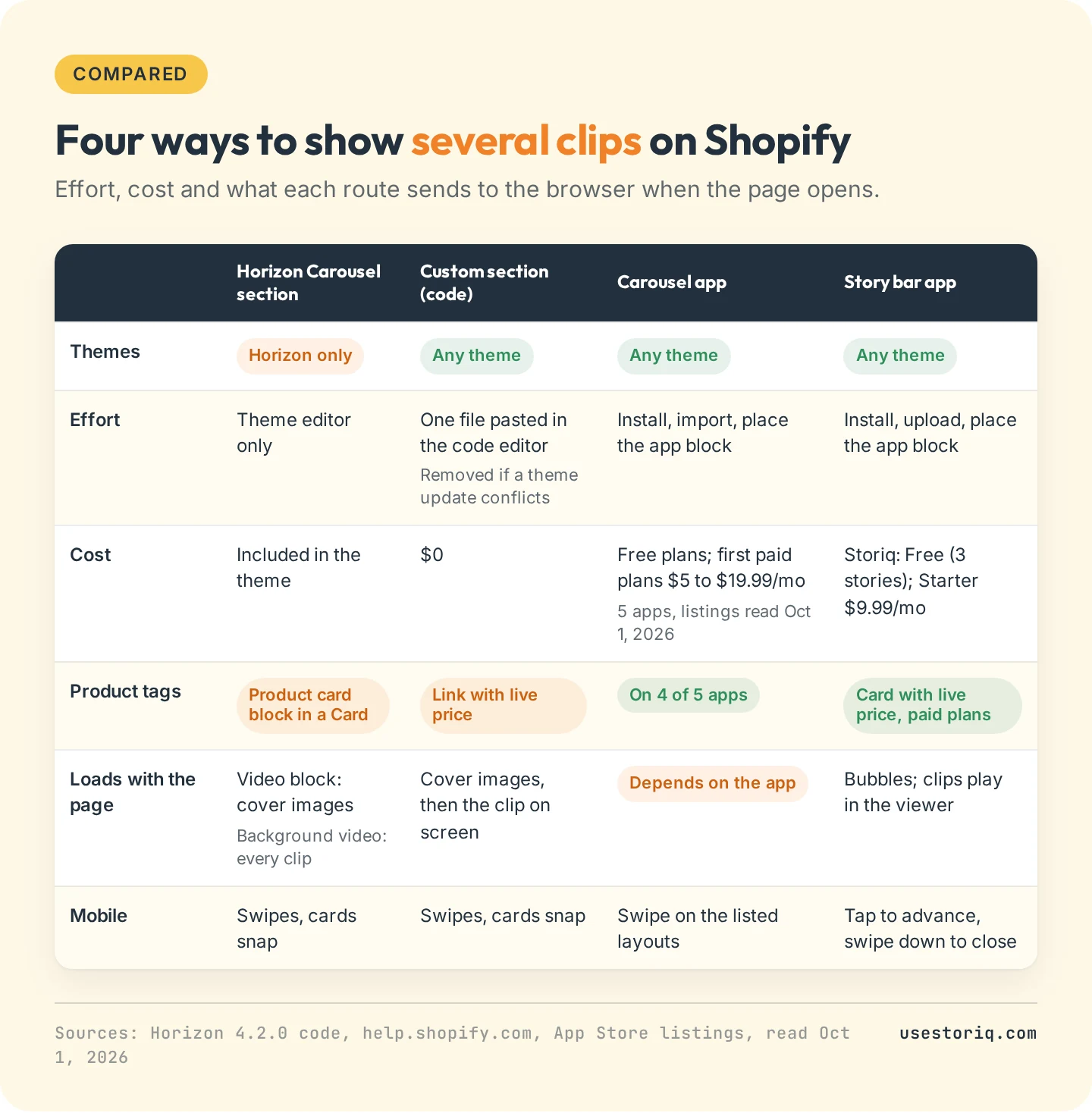
We read the code of Dawn 16.0.0 and Horizon 4.2.0, and the App Store listings of five carousel apps, on October 1, 2026. The routes differ most in what loads with the page: a carousel where every clip autoplays downloads every clip, even those off screen, while a click-to-play carousel loads one cover image per card.
Shopify video carousel options compared
Start with vertical MP4 clips uploaded in Content > Files; our page on Shopify video size and format lists the limits and export settings. For a single video on the home page, such as a hero background, see our guide to adding a Shopify homepage video.
Does your theme have a video carousel section?
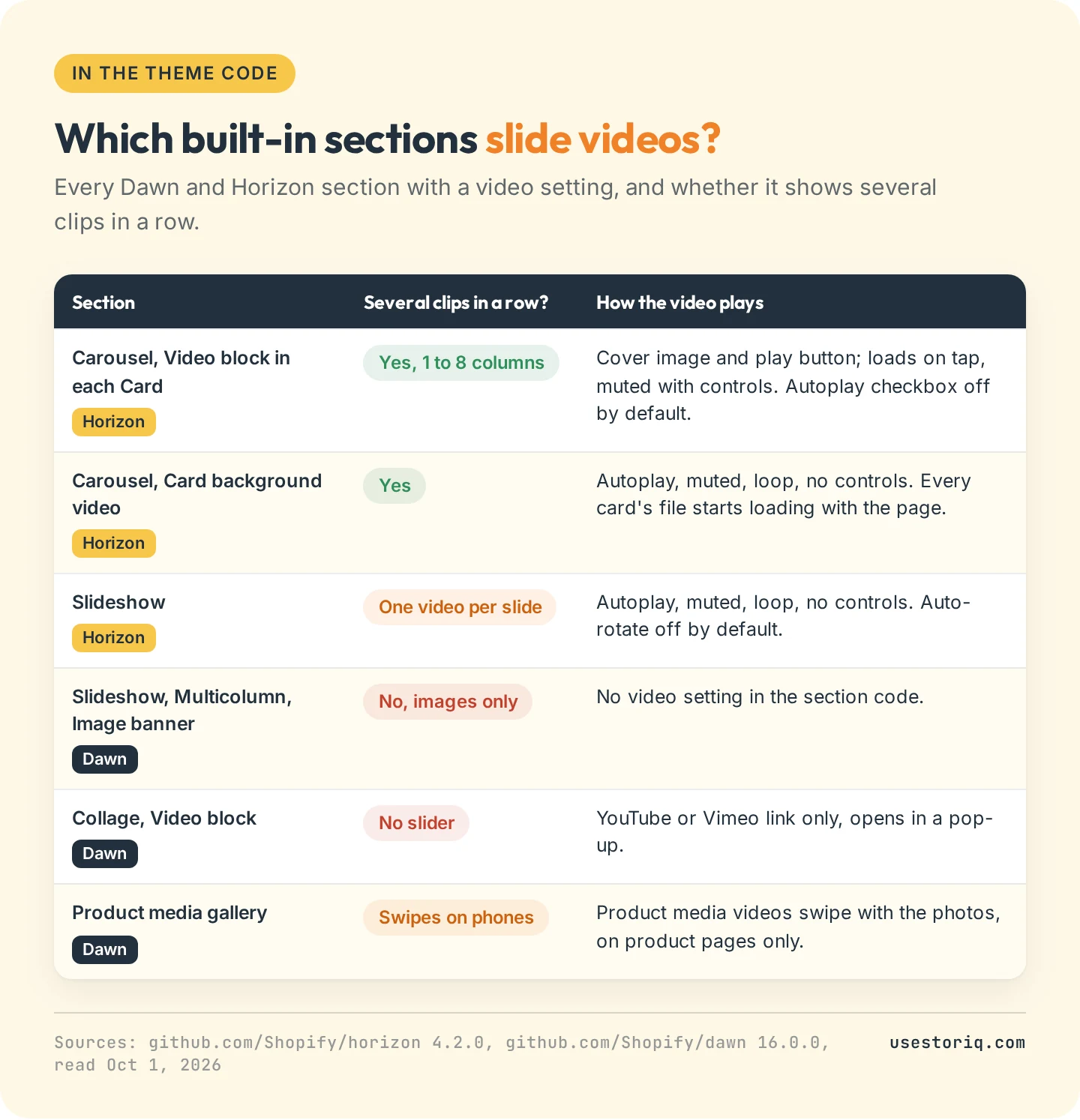
Horizon: the Carousel section
Horizon ships a section named Carousel, filed under Storytelling in the section list, with four Card blocks by default. A Card accepts a Video block, and the Card itself has a Background media setting with a Video option. A Card can also hold a Product card block, which shows the product next to the clip. The section settings are Columns (1 to 8 on desktop), Mobile columns (1 or 2) and the arrow style. On phones the row swipes and each card snaps into place.
To build a video carousel with it:
- Upload the clips in Content > Files.
- Go to Online Store, click Edit theme, click Add section and choose Carousel.
- In each Card, remove the Image block, click Add block and choose Video, then select the clip.
- Click Save.
The two video options behave differently. A Video block with Autoplay left off, its default, shows the clip's cover image and a play button, and the video only loads on the tap. It then plays muted with controls, so the shopper can turn the sound on. A Card's background video plays muted and looping with no controls, and Horizon's code starts loading the file as soon as the page opens, for every card. MDN's reference for the HTML video element explains why: "The autoplay attribute has precedence over preload." At Shopify's 720p bitrates, four 15-second clips weigh 12.0 to 33.6 MB if they all play through.
Dawn: no video slider
Dawn 16.0.0 has no section that slides videos. Slideshow, Multicolumn and Image banner take images only, and the Collage section's Video block accepts YouTube or Vimeo links, opened in a pop-up. The one native swipe for video in Dawn is the product gallery: on phones it is a slider, so a video added as product media swipes with the photos. Our guide to adding video to a Shopify product page covers that method.
Themes from other developers differ: search their documentation for "video" and "slider" before you write code.
Shopify video carousel code: a custom section
A custom section works in any theme. According to Shopify's guide to editing theme code, you can only edit the code of a paid theme after buying it, and "If changes that you've made to a theme's code are incompatible with a theme update, then all your code changes are removed in the updated copy." Duplicate the theme first and keep a copy of the file.
- Go to Online Store, click the ... button next to your theme, then Edit code.
- Right-click the sections folder, select New file... and name it
video-carousel.liquid. - Paste the code below and save.
- In the theme editor, add the Video carousel section, then one Clip block per video, with its file and, optionally, its product.
<div class="vc" id="vc-{{ section.id }}">
  {%- for block in section.blocks -%}
    {%- assign clip = block.settings.video -%}
    {%- assign src = '' -%}
    {%- assign best = 0 -%}
    {%- for s in clip.sources -%}
      {%- if s.format == 'mp4' and s.width <= 720 and s.width > best -%}
        {%- assign src = s.url -%}
        {%- assign best = s.width -%}
      {%- endif -%}
    {%- endfor -%}
    <figure class="vc__item" {{ block.shopify_attributes }}>
      {%- if src != '' -%}
        <video muted loop playsinline preload="none"
          poster="{{ clip.preview_image | image_url: width: 540 }}">
          <source src="{{ src }}" type="video/mp4">
        </video>
      {%- endif -%}
      {%- assign p = block.settings.product -%}
      {%- if p -%}
        <a href="{{ p.url }}">{{ p.title }} <span>{{ p.price | money }}</span></a>
      {%- endif -%}
    </figure>
  {%- endfor -%}
</div>

<style>
  .vc { display: flex; gap: 12px; overflow-x: auto; scroll-snap-type: x mandatory; padding: 0 16px; }
  .vc__item { flex: 0 0 min(70%, 280px); scroll-snap-align: start; margin: 0; }
  .vc video { display: block; width: 100%; aspect-ratio: 9 / 16; object-fit: cover; border-radius: 12px; }
</style>

<script>
  (() => {
    const videos = document.querySelectorAll('#vc-{{ section.id }} video');
    if (matchMedia('(prefers-reduced-motion: reduce)').matches) {
      videos.forEach((v) => (v.controls = true));
      return;
    }
    const io = new IntersectionObserver((entries) => {
      entries.forEach((e) => (e.isIntersecting ? e.target.play().catch(() => {}) : e.target.pause()));
    }, { threshold: 0.6 });
    videos.forEach((v) => io.observe(v));
  })();
</script>

{% schema %}
{
  "name": "Video carousel",
  "blocks": [
    {
      "type": "clip",
      "name": "Clip",
      "settings": [
        { "type": "video", "id": "video", "label": "Video" },
        { "type": "product", "id": "product", "label": "Product shown" }
      ]
    }
  ],
  "presets": [{ "name": "Video carousel" }]
}
{% endschema %}
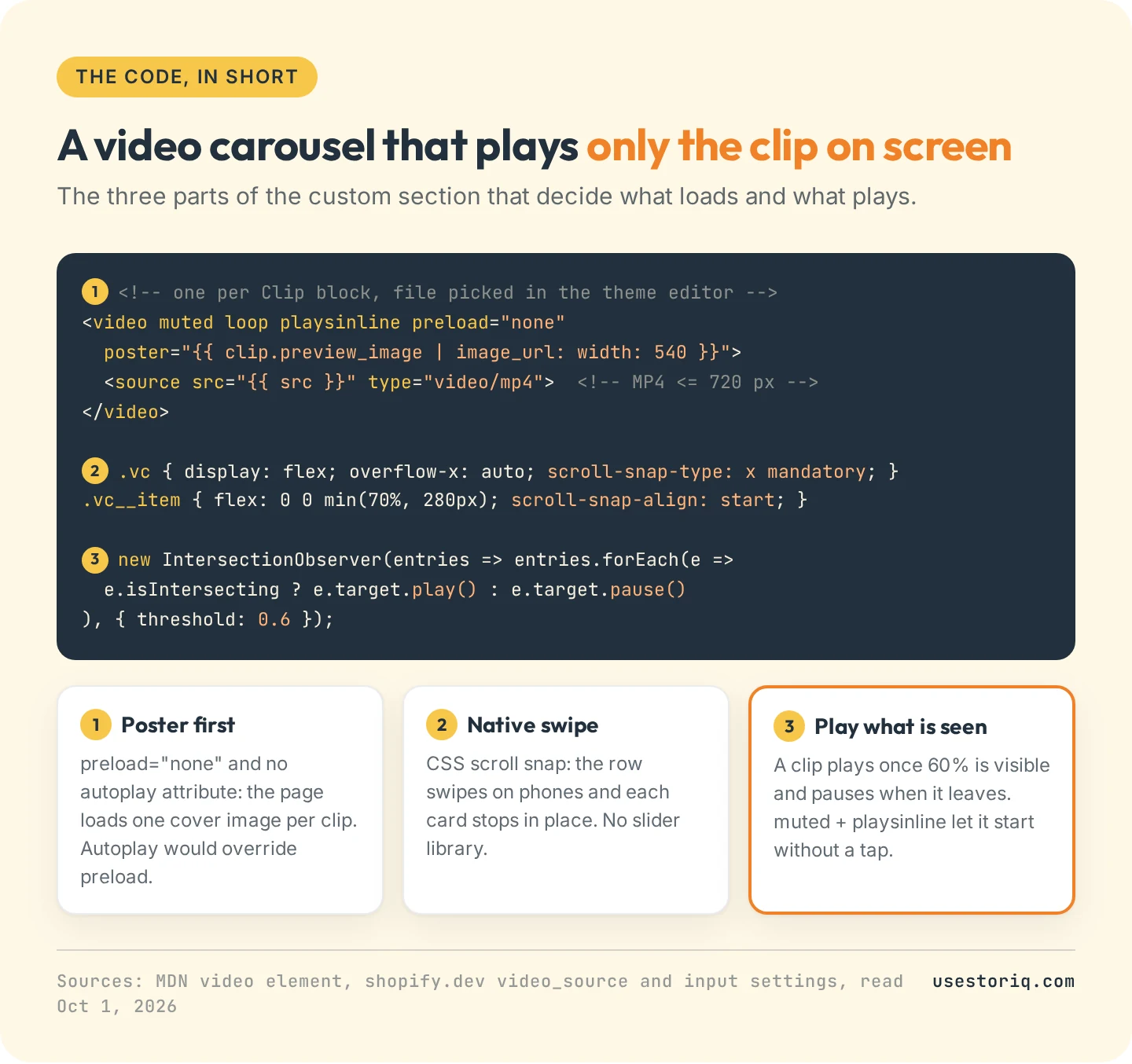
What each part does
- The
videosetting gives each block a picker filled from your Files, per Shopify's input settings reference. No link to paste or to break when you replace a file. - The source loop picks the widest MP4 rendition at or under 720 pixels. Shopify encodes several sizes of each upload, and a 280-pixel card does not need the 1080p file.
preload="none"and the poster: until a clip comes on screen, the browser downloads its cover image only. There is noautoplayattribute, since autoplay overrides preload.mutedandplaysinlinelet a script start the video without a tap, inside the page on iPhone.- The script plays a clip once 60% of it is visible and pauses it when it leaves: one clip at a time on a phone. Shoppers whose device is set to reduce motion get controls instead.
- The product link shows the title and live price under the clip, with no add to cart button.
Shopify video carousel apps
A carousel app adds its own block, imports clips and tags products on each video. Five apps put "video carousel" or "video slider" in their listing name or tagline (listings read October 1, 2026):
| App | Rating (reviews) | Free plan | First paid plan | Product tags |
|---|---|---|---|---|
| Moast Shoppable Video & UGC | 5.0 (338) | Unlimited views, 10 videos per widget | $15/mo | Yes |
| Vizup Shoppable Video Carousel | 5.0 (97) | Unlimited views and product tags | $19.99/mo | Yes |
| Spark UGC Video Carousel | 4.8 (69) | 500 views/mo, all features | $19/mo, unlimited views | Yes |
| Video Carousel : Video Reels | 5.0 (10) | 300 views/mo, unlimited uploads | $5/mo, 14-day trial | Yes, several per video |
| POWR: Video Slider & Carousel | 4.8 (11) | Up to 4 video slides | $5.94/mo, 6 slides and autoplay | Not listed |
Moast, Vizup and Spark carry the Built for Shopify badge. Spark imports Reels and TikToks in one click. Video Carousel : Video Reels, by drilly, launched in November 2024. POWR plays YouTube, Vimeo and TikTok videos and keeps autoplay for paid plans.
The free plans cap different units. Our comparison of eight shoppable video apps reads the full plan grids, and the guide to adding Instagram Reels and TikToks to Shopify covers import.
Under the add to cart button or on the home page
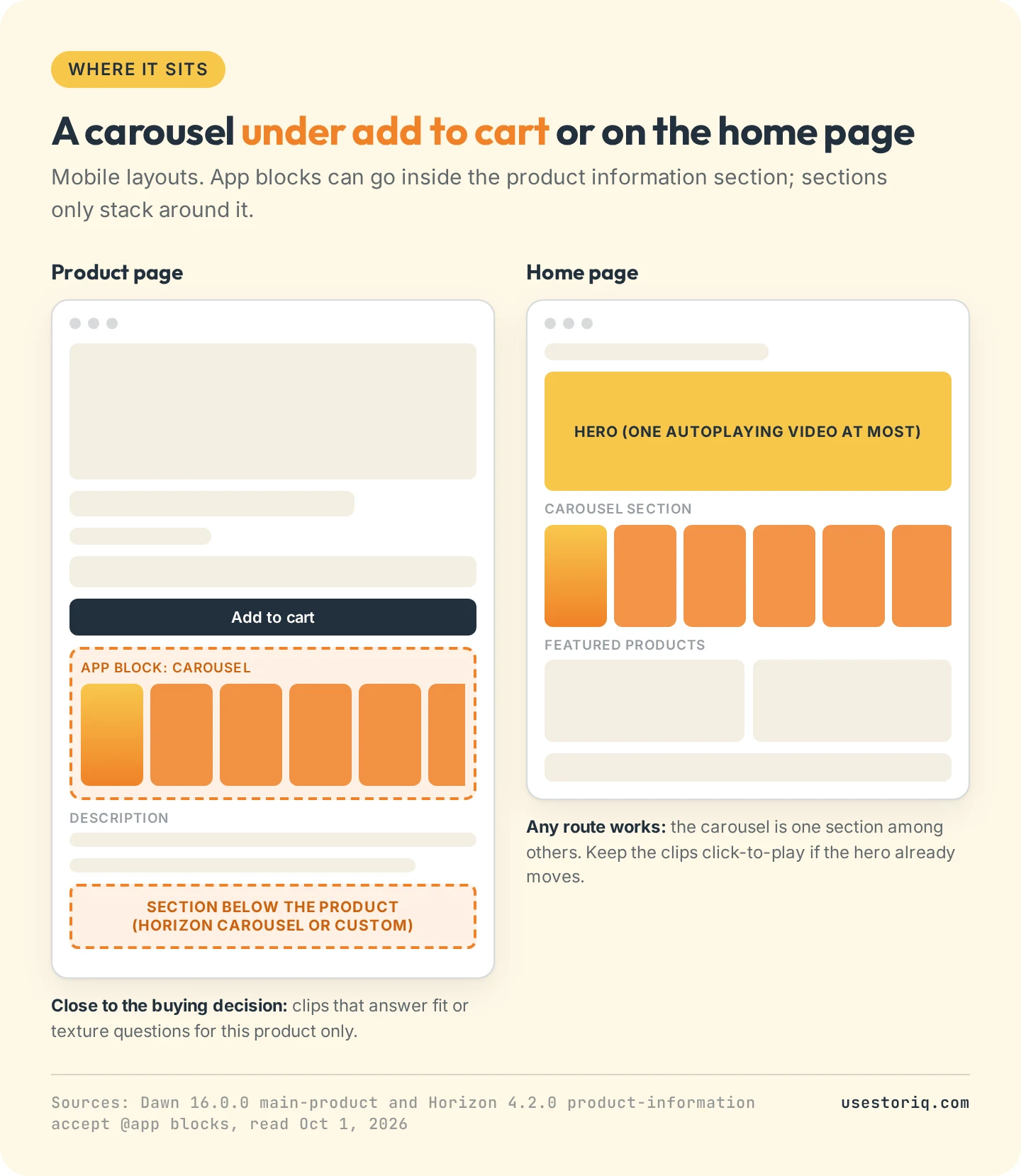
Placement decides the route on product pages. In Dawn and Horizon, the product information section accepts app blocks, so an app's carousel can sit right under the buy buttons. A section, whether Horizon's Carousel or your custom file, goes below the whole product section, which on a phone means after the description. In our review of 8 Shopify stores using shoppable video, Sacheu shows five vertical clips under its add to cart button through Videowise.
On the home page, any route works. Keep one autoplaying element per page: a looping hero above an autoplaying carousel sends two sets of video files with every visit.
When a story bar fits better than a carousel
Storiq, our app, has no carousel. It adds a story bar through a theme app block: round bubbles that open a full-screen viewer, where the shopper taps through short vertical clips from your Shopify Files library. A product tagged on a slide shows a card with its image, title and price read live from your catalog.
A story bar fits clips meant to be watched in sequence and full screen, such as a fit check, a how-to or a drop. A carousel fits better when the clips should move on the page before anyone taps, when shoppers compare many clips side by side, or when you want Reels imported automatically (Storiq has no import: you download the clip and upload it). The Free plan covers 3 stories on product pages; home and collection placements and product cards come with Starter, $9.99 a month with a 7-day free trial. Our page on shoppable stories compares the two formats in more detail.
Frequently asked questions
How do I add a video carousel in Shopify?
Upload your clips in Content > Files. In the Horizon theme, go to Online Store > Edit theme, click Add section, choose Carousel, and add a Video block to each Card. Dawn has no section that slides videos, so Dawn stores add a custom section in the code editor or install a carousel app and place its app block from the theme editor.
Can you include a video in a Shopify slideshow or carousel?
In Horizon, yes: each Card of the Carousel section takes a Video block or a background video, and each slide of the Slideshow section can be set to Video. In Dawn 16.0.0, no: the Slideshow and Multicolumn sections accept images only, and the Collage section's Video block opens YouTube or Vimeo links in a pop-up.
Is there a free Shopify video carousel app?
Yes. As of October 1, 2026, Moast's free plan gives unlimited views with 10 videos per widget, Vizup's free plan unlimited views, Spark 500 views a month, Video Carousel : Video Reels 300 views a month, and POWR's Video Slider up to 4 video slides without autoplay. Each caps a different thing, so compare the unit before you install.
How do I make videos autoplay in a Shopify carousel?
Browsers only autoplay video that is muted, and iPhones also need the playsinline attribute. In Horizon, tick Autoplay on each Video block or use a Card's background video, which plays muted and looping. Every autoplaying clip downloads with the page, so a custom section that plays only the clip on screen keeps the page lighter.
Can I add a video slider to Shopify without an app?
Yes. In Horizon, use the Carousel section. In any theme, create a section file in the code editor with a video picker per block, a scroll-snap row and a few lines of JavaScript that play the visible clip. Shopify removes code edits that are incompatible with a theme update, so keep a copy of the file.