How to add an MP4 video to Shopify without YouTube
Upload the MP4 to Shopify Files, then pick it in a Video section or paste its link into a video tag. The exact path for the home page, product pages, pages and blog posts, what changes compared with a YouTube embed, and the upload errors you are likely to meet.
To add an MP4 video to your Shopify homepage without YouTube, upload the file in Content > Files, then open Online Store > Edit theme, add a Video section to the home page and select the file under Shopify-hosted video. If your theme has no video section that accepts a file, add a Custom Liquid section and paste a <video> tag that points to the link copied from Files. Shopify then serves the video, with no YouTube logo, title or suggested videos around it.
Older guides still point to Settings > Files (the page now sits under Content) or cite a 20 MB ceiling. The current limit, per Shopify's file requirements, is 1 GB and 10 minutes per video, checked on October 1, 2026.
Why merchants avoid YouTube embeds on a store
A YouTube embed runs YouTube's player, with three rules set in the YouTube player parameters documentation:
- Suggested videos cannot be turned off. Since September 25, 2018,
rel=0only limits related videos to the same channel. Shopify's Help Center confirms it: "YouTube does not allow you to deactivate related videos". - The channel avatar and the video title always show, before playback, when paused and at the end. The
modestbrandingparameter, which used to hide the YouTube logo, "is deprecated and will have no effect" since August 15, 2023. - Autoplay means tracking at page load. With autoplay on, "playback data collection and sharing will therefore occur upon page load".
YouTube's embed help page covers clicks: a viewer who "clicks or taps out of the embed" is redirected, and that site may track them. A shopper who taps the title lands on YouTube, away from your cart. Privacy Enhanced Mode (the youtube-nocookie.com domain) keeps the view from personalizing YouTube and its ads, but the title, avatar and suggestions stay.
YouTube remains the route for a video above 1 GB or 10 minutes: Shopify's limits "don't apply to embedded Vimeo or YouTube links".
Step 1: upload the video to Shopify Files
How to upload video to Shopify, whatever the destination:
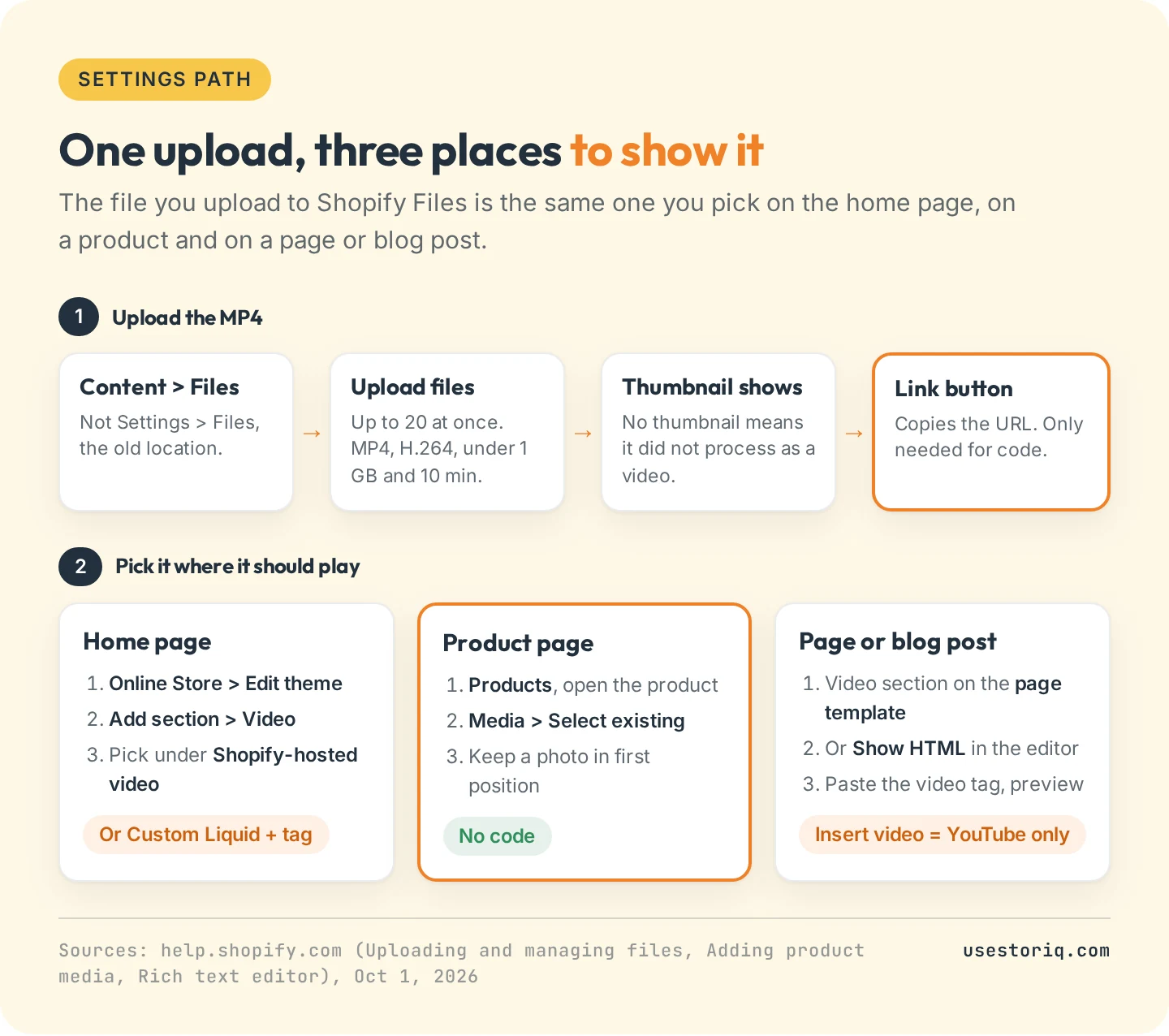
- In your admin, go to Content > Files.
- Click Upload files and select the MP4 (up to 20 files at once).
- Wait for the thumbnail. A video without one did not process (see the errors below).
- For code, click the Link button next to the file to copy its URL.
Before you upload video to Shopify Files, export an MP4 with H.264 video (the only video codec Shopify lists) and AAC audio. Our page on Shopify video size and format has every limit and export setting. Plans cap the count too: a Basic store holds 250 videos and 3D models and 50 GB of video storage, Grow 1,000 and 500 GB. Trial stores cannot upload video.
Add the MP4 video to your Shopify homepage without YouTube
Option 1: the Video section and its Shopify-hosted video setting
Go to Online Store, click Edit theme, and on the home page click Add section. In Dawn, choose Video and select your file under Shopify-hosted video. Leave Or embed video from URL empty: it only applies when no file is selected. In Horizon, add a Video block and set Source to Uploaded.
Dawn's section uses the cover image set in Files as its poster, waits for a click and plays with sound. Horizon's block can autoplay, muted. The Shopify homepage video guide compares every section, hero backgrounds and their page weight.
Option 2: Custom Liquid with a video tag
When no section takes a file, or you want to control playback, click Add section, choose Custom Liquid, and paste this in the Liquid code box:
<video controls muted playsinline preload="metadata"
  poster="PASTE-THE-COVER-IMAGE-LINK.jpg"
  style="display:block;width:100%;height:auto">
  <source src="PASTE-THE-VIDEO-LINK-FROM-FILES.mp4" type="video/mp4">
</video>
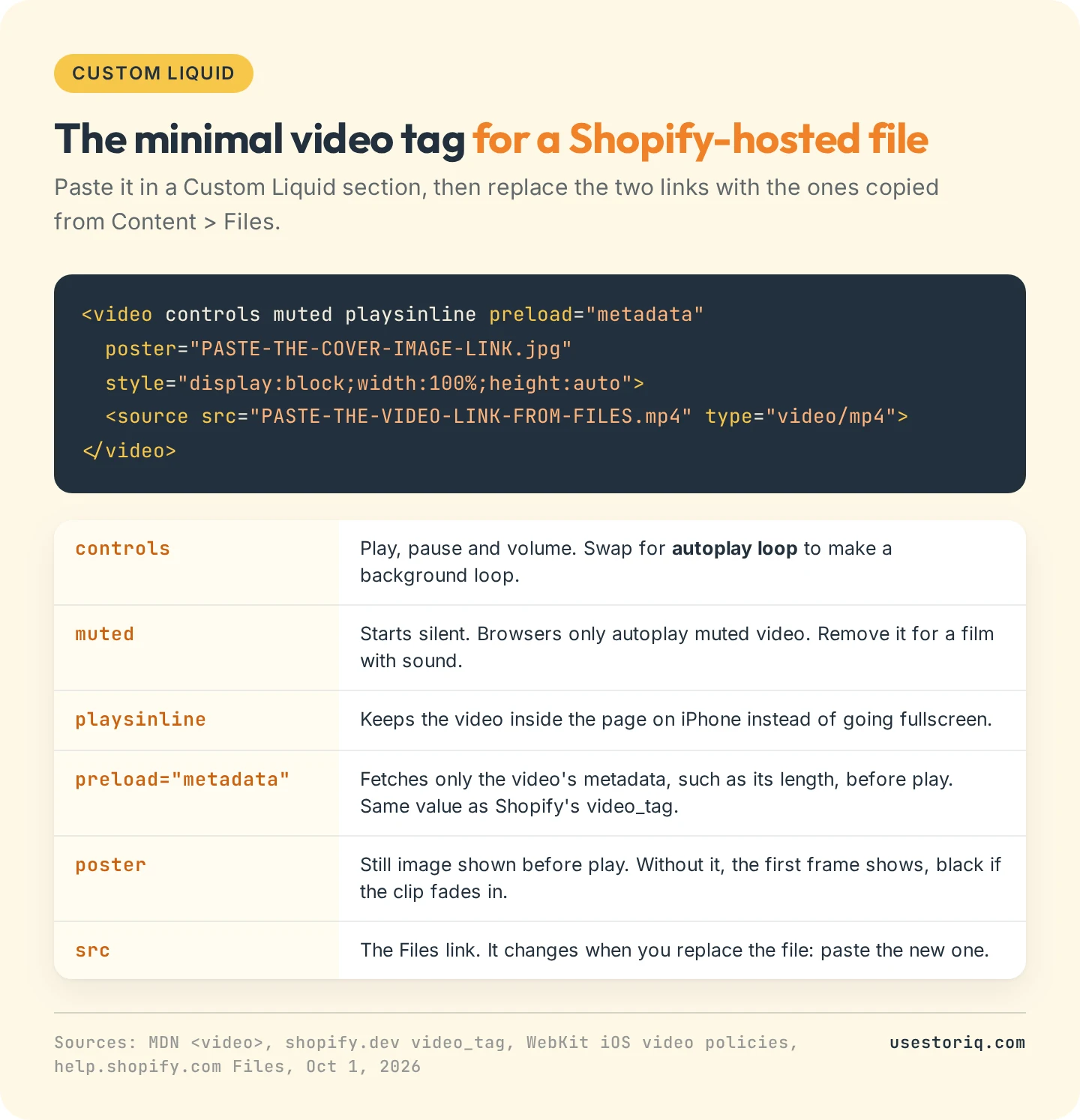
This version waits for a tap and starts silent. Remove muted for a film with sound. For a background loop, replace controls with autoplay loop: browsers only autoplay muted video.
When you replace a file, Shopify states that "the file name stays the same, but the file's link changes". Paste the new link into your code after each replacement.
The same file on product pages, pages and blog posts
Product pages. In the product's Media section, click Select existing to pick the file from Files, or Upload new. Keep a photo first: the first media item shows on collection pages, in the cart and at checkout. A video cannot be a variant's media. Our guide to adding video to a Shopify product page covers the other four methods.
Pages and blog posts. The editor's Insert video button only takes YouTube or Vimeo embed code. For a Shopify-hosted file:
- Add a Video section to the page template in the theme editor. It shows on every page using that template, so create an alternate template for one-off pages.
- In the editor, click Show HTML and paste the same video tag. Shopify documents this for audio files with a Files link. The editor rewrites HTML it considers risky, so preview after saving.
YouTube embed vs Shopify-hosted video
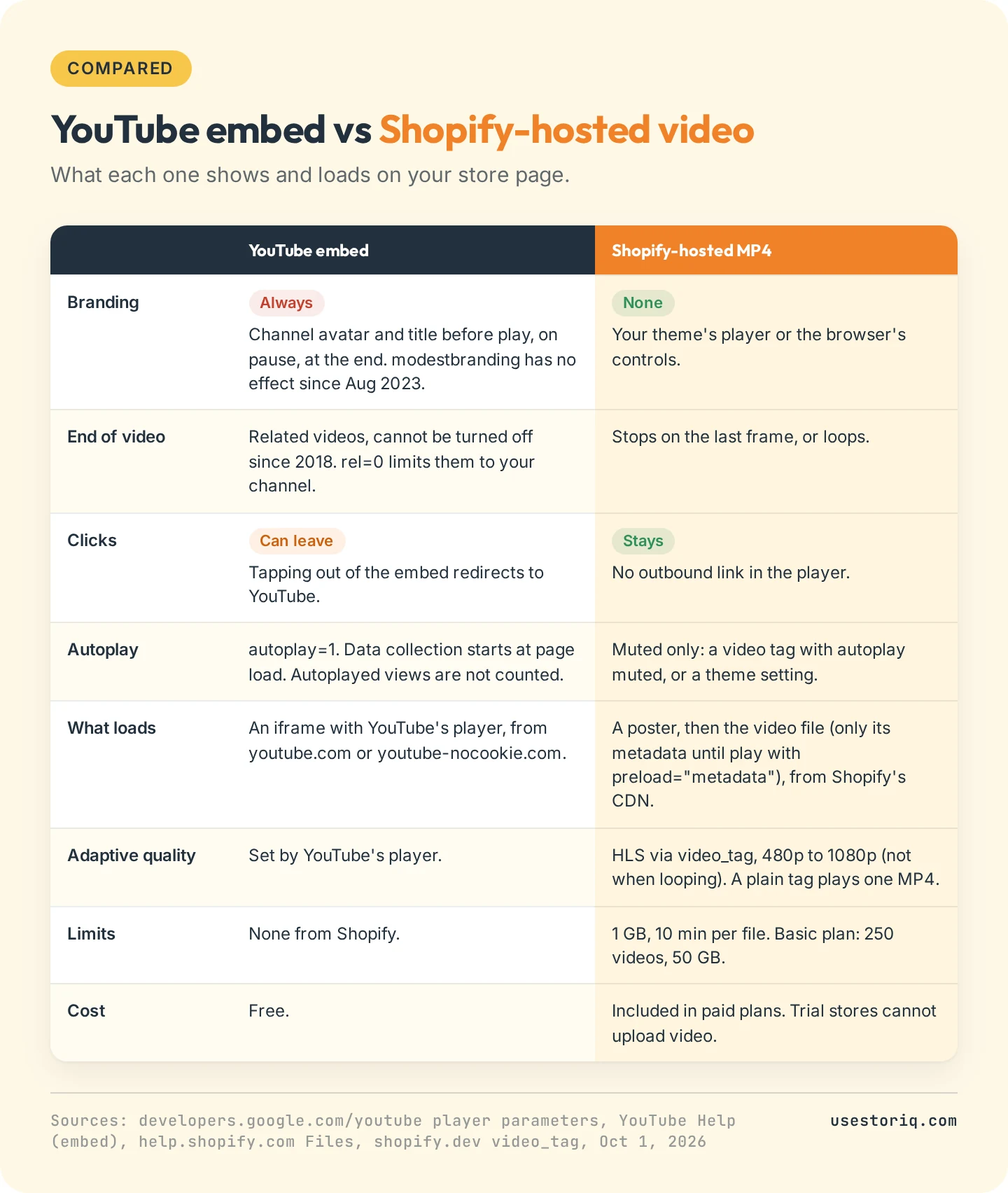
Adaptive streaming. Theme sections built on Shopify's video_tag Liquid filter serve an HLS stream that adapts to the shopper's connection (except when loop is on), from 0.9 Mbps at 480p up to 10.4 Mbps at 1080p. A plain video tag in Custom Liquid plays the one MP4 its link points to.
Cost. A Shopify self hosted video costs nothing extra but counts against your plan's video allowance. YouTube is free and sits outside those limits.
Common errors and how to fix them
Shopify's media troubleshooting page maps each error to a cause:
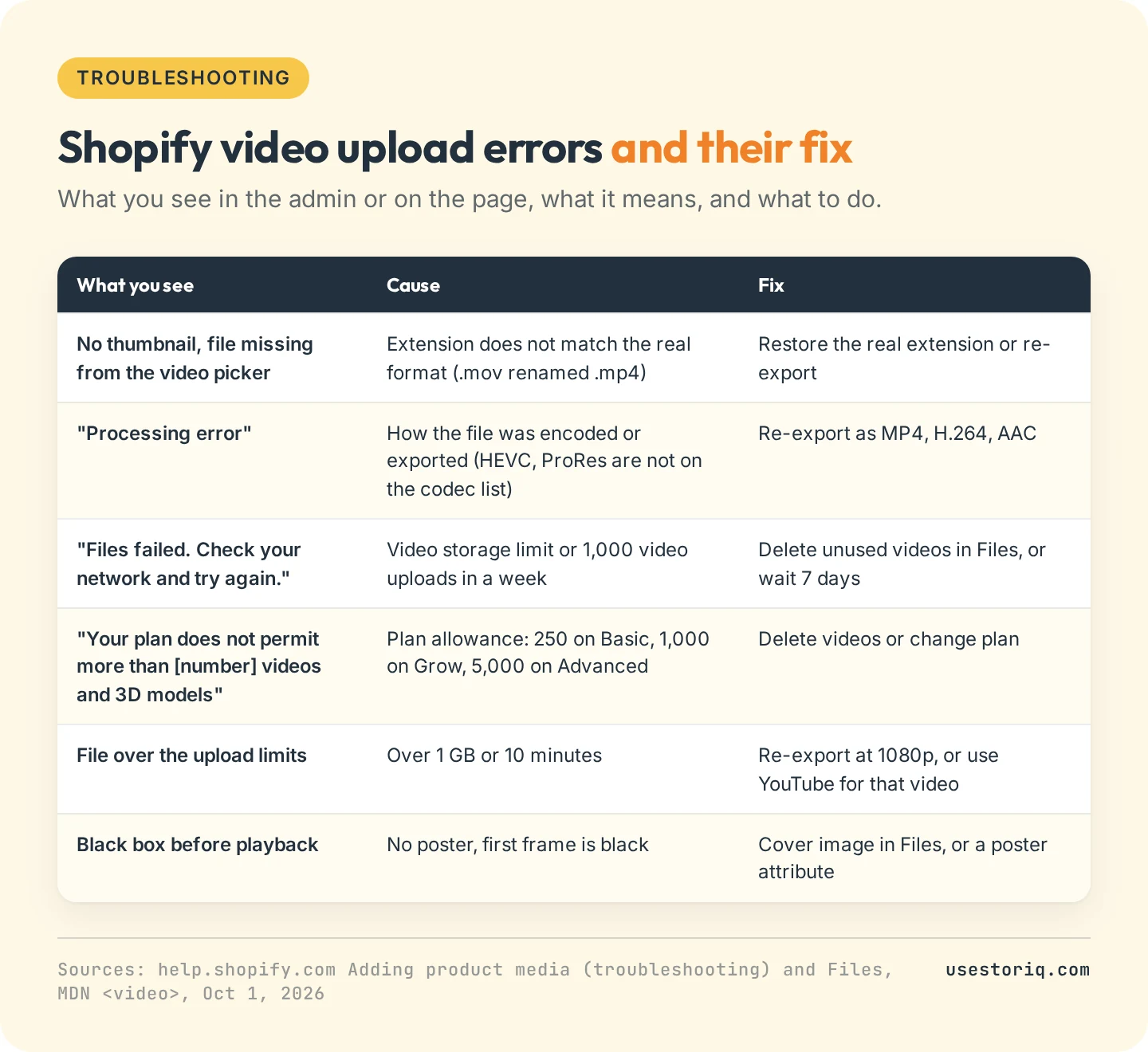
- The video picker does not show the file. A video with no thumbnail that won't play in Files has an extension that does not match its real format, typically a .mov renamed to .mp4. Shopify hides such files from the Select file dialog. Restore the real extension or re-export. A GIF won't show either: Shopify counts it as an image.
- "Processing error". The file could not be converted, "usually caused by how the file was encoded or exported". HEVC (H.265) and ProRes are not on Shopify's codec list. Re-export in H.264.
- "Files failed. Check your network and try again." For a video, this means the store hit its video storage limit or its weekly cap of 1,000 video uploads.
- File too big. Above 1 GB or 10 minutes, re-export at 1080p, the highest resolution shoppers are served, or host that one video on YouTube.
- A black frame before playback. Without a poster, the browser shows the first frame, so a clip that fades in from black shows a black box. Set a cover image in Files (Dawn's Video section uses it) or add a
posterto your tag.
Several short clips instead of one video
One film suits a Video section. Five short clips (a fit check, a texture close-up, a how-to) work better as stories (a row of bubbles that opens a full-screen viewer) or in a Shopify video carousel. Our guide to adding Instagram-style stories to Shopify covers what to film.
Storiq adds a story bar to your theme through a theme app block, with no code. The clips come from your Shopify Files library, or are uploaded through Storiq into it, so Shopify's CDN serves them and the limits above apply. The Free plan covers stories on product pages. Home page placement is part of the Starter plan, at $9.99 per month with a 7-day free trial.
Frequently asked questions
How do I upload a video to my Shopify homepage?
In your Shopify admin, go to Content > Files, click Upload files and select the MP4. Then open Online Store, click Edit theme, add a Video section on the home page and select the file under Shopify-hosted video. The file must be MP4, MOV or WebM, under 1 GB and 10 minutes, and stores on a trial plan cannot upload video.
How can I embed a video into my Shopify homepage?
Two ways. A theme section such as Dawn's Video section takes either a file from Shopify Files or a YouTube or Vimeo link. A Custom Liquid section takes HTML, so you can paste a video tag that points to the link copied from Content > Files. The first needs no code, the second lets you set autoplay, muted and the poster image yourself.
How to upload media in Shopify?
Go to Content > Files and click Upload files, up to 20 files at a time. Everything you upload through a file picker elsewhere in the admin, for a product, the theme editor or a metafield, also lands on the Files page. On a product, the Media section offers Upload new, drag and drop, or Select existing to reuse a file already in Files.
Is hosting video on Shopify free?
Uploading video is included in every paid Shopify plan, within limits. A Basic plan store can hold 250 videos and 3D models and 50 GB of video storage, Grow 1,000 and 500 GB, Advanced 5,000 and 500 GB. Trial stores cannot upload video files. YouTube is free too, and Shopify's upload limits do not apply to YouTube or Vimeo links.