How to add a video to a Shopify collection page: header, single collection and product grid
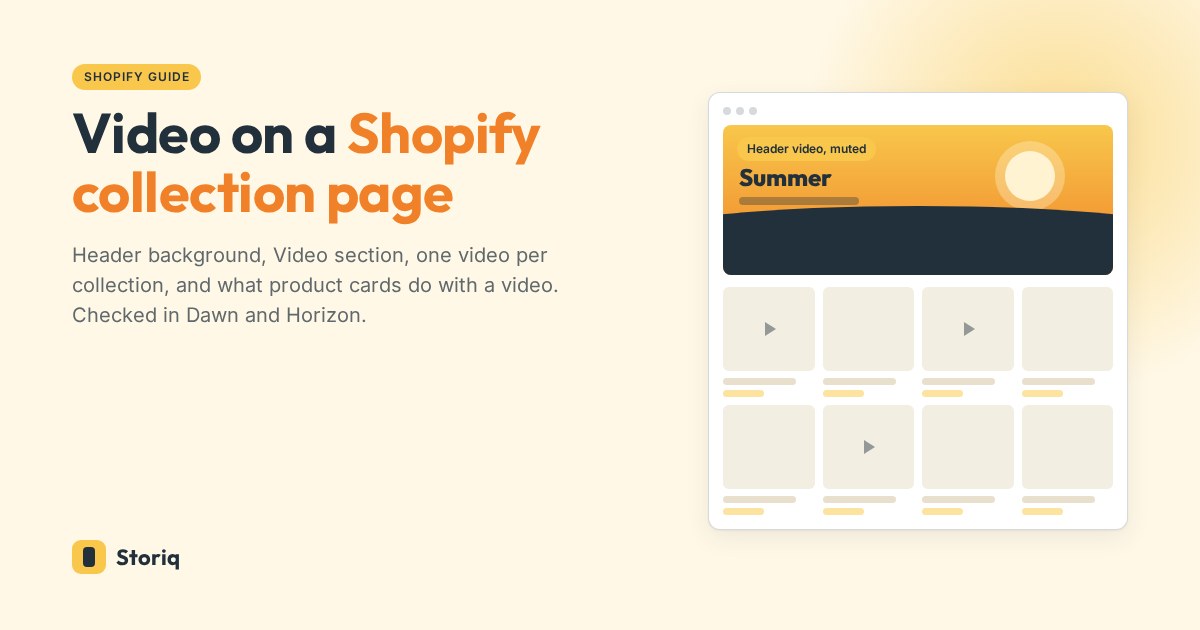
Where a video can go on a Shopify collection page, checked in the code of Dawn and Horizon: a header background, a Video section, a different video per collection with no code, and what product cards do with a product video.
To add a Shopify collection page video, upload the MP4 in Content > Files, open the theme editor, and switch the template drop-down at the top to Collections > Default collection. In Horizon, select the Heading section and set Background media to Video. In Dawn, click Add section and choose Video. Either way, the video appears on every collection that uses the template, so one collection with its own video needs an alternate template or a collection metafield. Product cards are a different matter: both themes show a still frame of a product video, never the video itself.
We read the collection templates in the code of Shopify's two reference themes, Dawn 16.0.0 and Horizon 4.2.0, on October 1, 2026. Horizon's collection heading plays a background video natively. Dawn's Collection banner takes only the collection image, which is why forum threads keep sending Dawn merchants into the banner's Liquid file.
Where a video can go on a Shopify collection page
A collection page has four spots for video: the header, a section above or below the product grid, the product cards, and an app block such as a story bar.
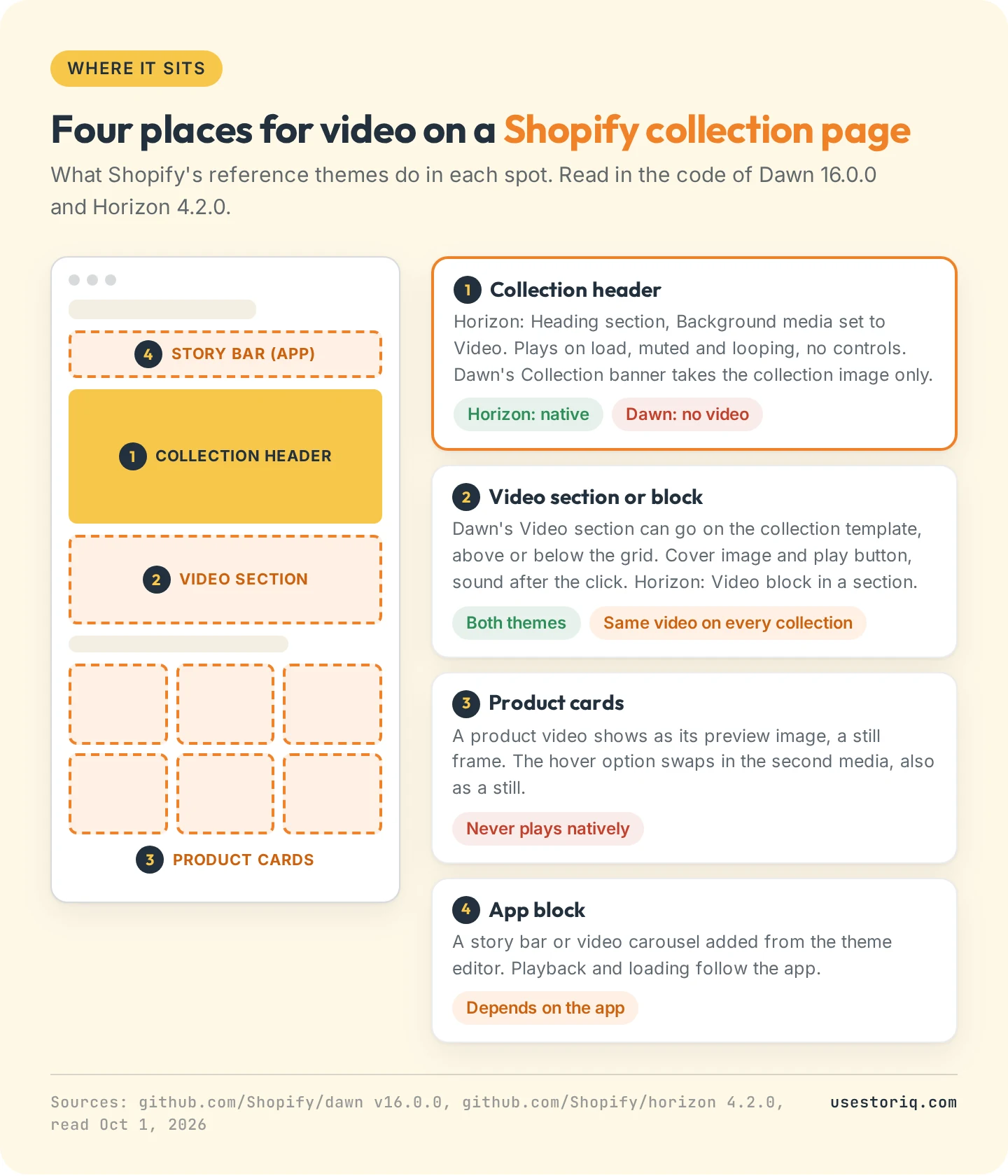
The header is seen first and costs page weight on every visit. A Video section further down costs one cover image until someone clicks. The grid is the spot your theme supports least.
Add a video to the collection page header
Horizon: the heading's background video
Horizon's collection template opens with a Heading section that prints the collection title and description. Select it, scroll to Appearance, and set Background media to Video. Pick your file, then choose Video position: Cover fills the section and crops the edges, Contain shows the whole frame.
In the code, the video plays with autoplay, muted, loop and playsinline, with no controls. The video's preview image displays first and gets high fetch priority when the heading is the first section, then the script loads the video right away. Your title and description sit on top: keep the subject away from the text, or turn on Background overlay for contrast.
The Heading accepts blocks too. Add a Video block instead for a click-to-play video with controls (it starts muted, and the shopper can turn the sound on), or for a video next to the title rather than behind it.
Dawn: a Video section above the product grid
Dawn's Collection banner has two checkboxes, Description and Image, and the image is the collection's featured image. There is no video option. Dawn's Video section, though, can be added to any template except the header and footer groups. On the collection template, click Add section, pick Video, then drag it between the banner and the Product grid.
It shows a cover image with a play button, then plays with sound and controls after the click. Our Shopify homepage video guide details its settings, and why a click-to-play section is the lightest option.
Any theme: Custom Liquid
A Custom Liquid section with a <video> tag and a Shopify Files link autoplays in any theme, Dawn included. The code and its attributes are in our guide to adding an MP4 video to Shopify without YouTube. One limit: the link is typed into the section, so every collection on that template plays the same file.
Show a video on one collection only
Sections live in the template, and every collection uses the default template unless you assign another. Shopify gives you two no-code ways around it.
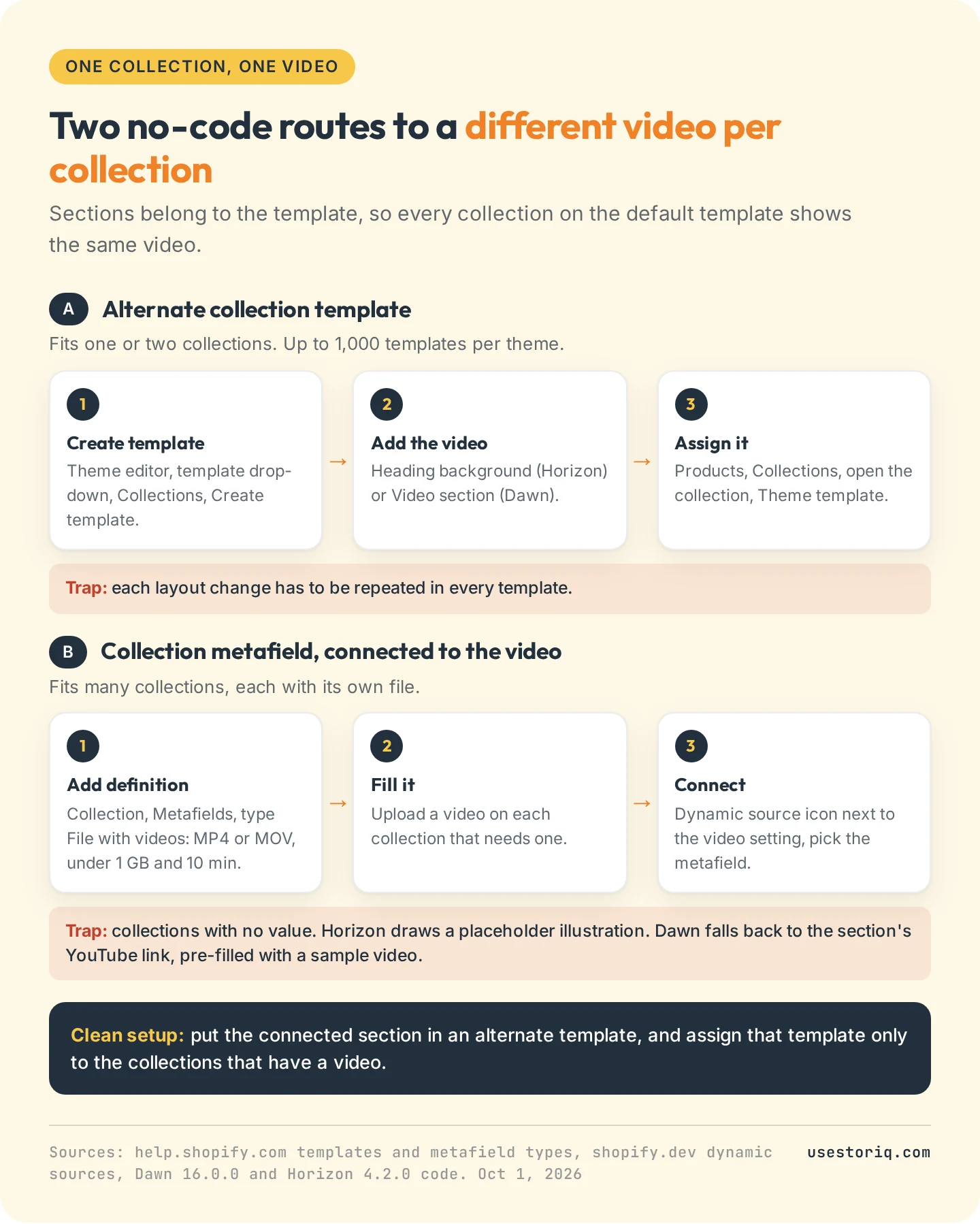
An alternate collection template
In the theme editor, open the template drop-down, choose Collections, then Create template. Name it, base it on the default, and add your video. Then go to Products > Collections, open the collection, and pick the new template under Theme template. Shopify's template documentation allows up to 1,000 templates per theme. It suits one or two collections, since every later layout change has to be repeated in each template.
A collection metafield connected to the video
For a different video on many collections, store the video on the collection itself. Open any collection, find Metafields, click Add definition, name it (for example "Header video") and choose the File type with videos accepted. Shopify's metafield types accept MP4 and MOV under 1 GB and under ten minutes, and a File value "will render as a video when used in video-type theme settings". Upload a video to each collection that needs one.
Back in the collection template, click the dynamic source icon next to the video setting and select the metafield. Shopify's dynamic sources reference makes the collection's metafields available to sections on the collection template, and lets a video setting connect to a file metafield that accepts videos.
Plan for the collections with no video. In Horizon, an empty background video renders a placeholder illustration. In Dawn, an empty video falls back to the section's YouTube link, which is pre-filled with a sample video when you add the section. The clean setup combines both routes: an alternate template holding the connected section, assigned only to the collections that have a video.
Video in the product grid
A product's first media item is its card image on collection pages. When that item is a video, Dawn and Horizon both render its preview image, a still frame. Show second image on hover (a Product grid setting in Dawn, under the theme's Product cards settings in Horizon) swaps in the second media item, also as a still. Neither theme plays video inside a card, and Horizon's Collection section accepts no blocks besides filters and the product card, so there is no native video tile either.
Making cards play takes a code edit to the product card or an app. Count the cost first: even at Shopify's 480p MP4 bitrate of 0.9 to 1.5 Mbps, a 5-second loop weighs 0.6 to 0.9 MB. Dawn shows 16 products per page by default and Horizon 24.
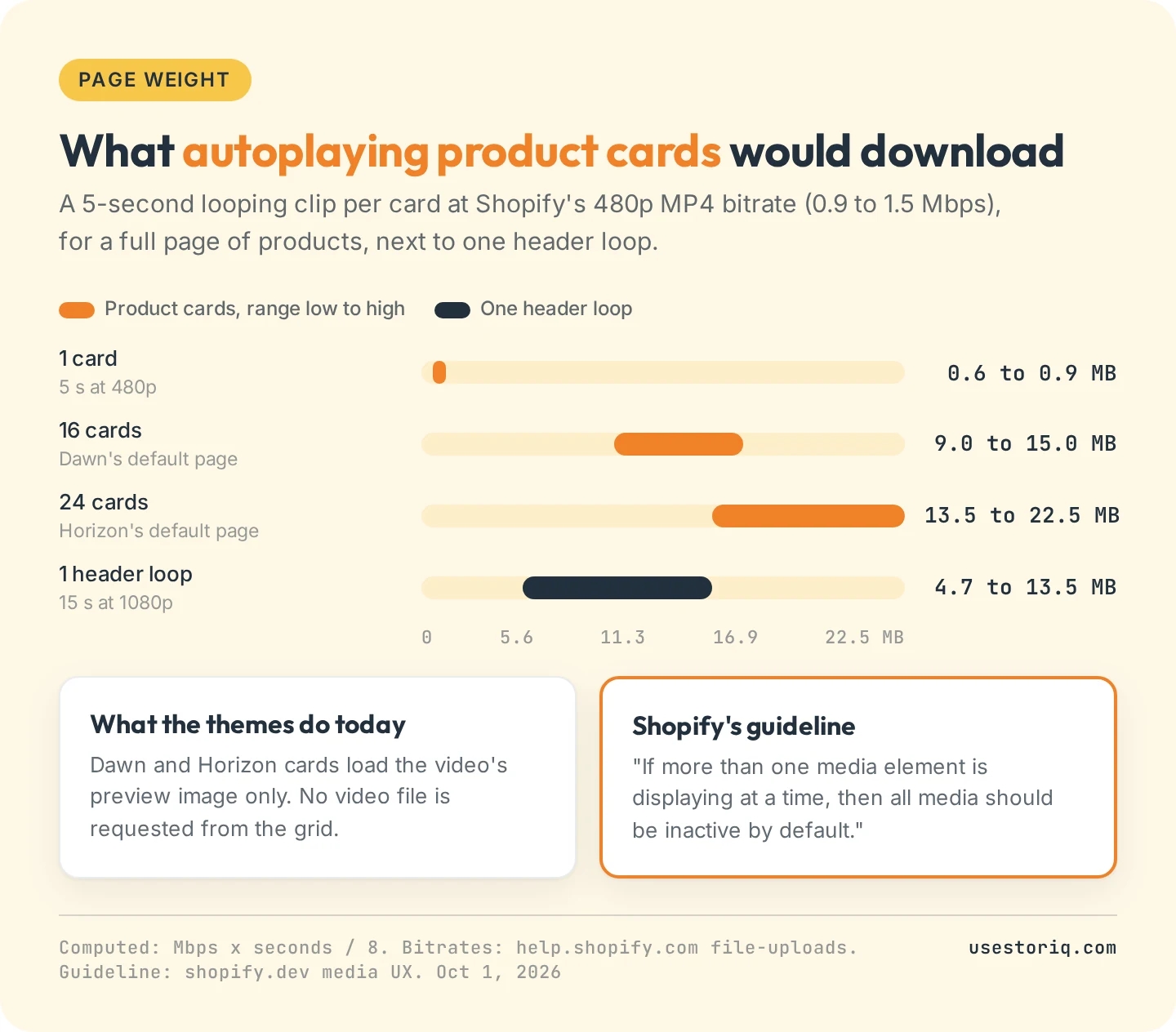
Shopify's media guidelines for theme developers cover this case: "If more than one media element is displaying at a time, then all media should be inactive by default, requiring the customer to initiate activity." A grid of looping cards is the opposite. If you want motion in the grid, keep it to a few cards, or let shoppers open short clips on demand with a video carousel placed above the grid. For the product page itself, our guide to adding video to a Shopify product page covers the gallery.
Dawn and Horizon on collection pages, side by side
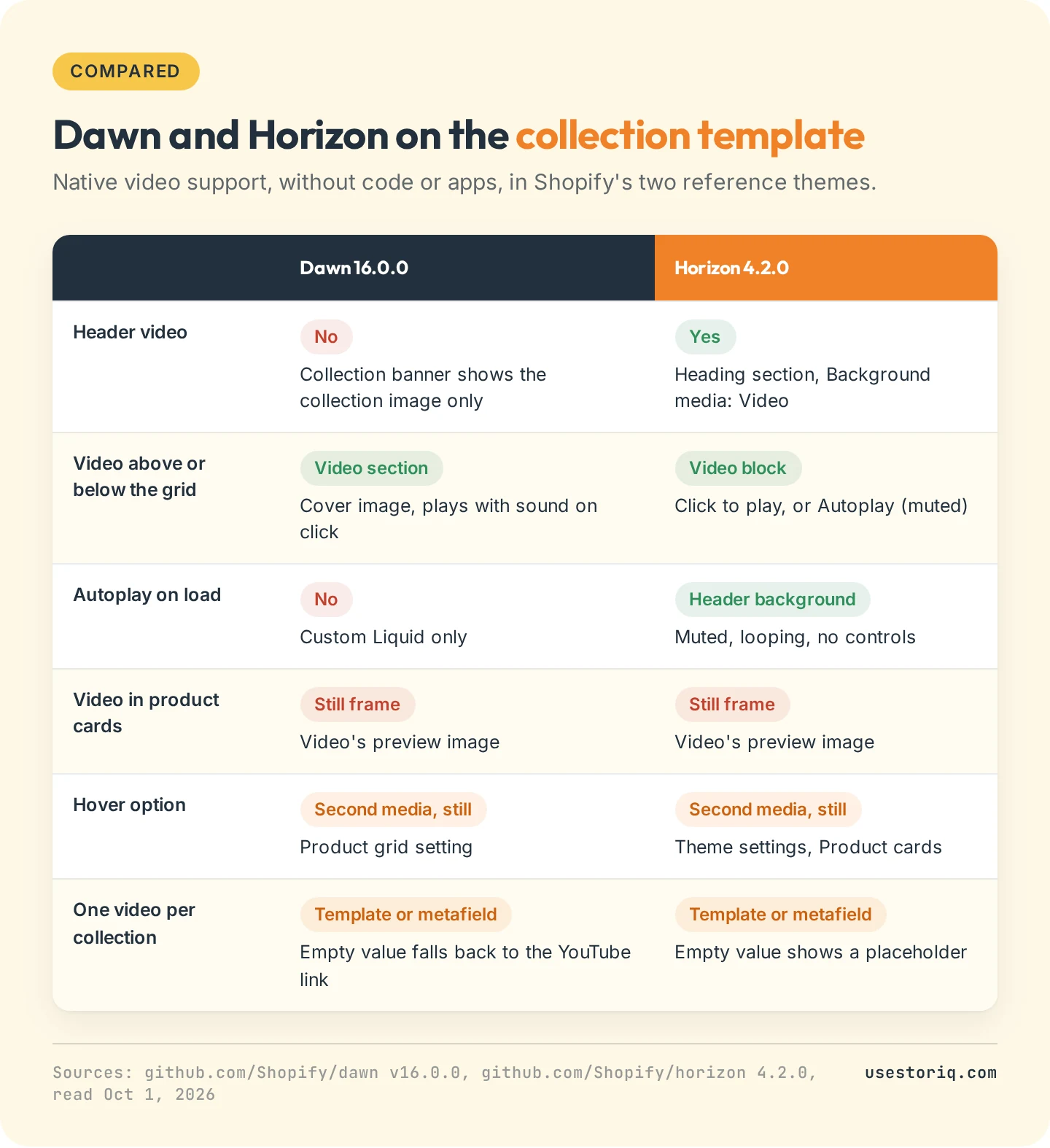
Themes from other developers name these sections differently, so check your theme's documentation before you edit code. Browser autoplay rules are the same on every page: a video only starts on its own when muted, as our homepage video guide explains with Chrome's and Safari's own policies. Export a header loop without an audio track and with the sizes Shopify recommends.
Stories on collection pages
A row of story bubbles under the collection header holds several short clips: the shopper taps a bubble and the clips play full screen, one after the other. It fits a collection with something to explain, such as how to pick a size within the range or what is new this week. Our guide to adding Instagram-style stories to Shopify covers what to film for each placement.
Storiq adds this story bar through a theme app block, with no theme code, and the clips stay in your Shopify Files library. Collection pages are a paid placement. The Starter plan, at $9.99 per month with a 7-day free trial, adds home and collection placements and collection targeting rules, which include or exclude collections so a story only runs where it belongs. Starter also adds product cards on slides, with the price read live from your catalog. The Free plan covers stories on product pages only.
Frequently asked questions
How do I add a video to a Shopify collection page?
Upload the MP4 in Content > Files. In the theme editor, open the template drop-down at the top, choose Collections, then Default collection. In Horizon, select the Heading section and set Background media to Video. In Dawn, click Add section, pick Video and select your file. The video then shows on every collection that uses that template.
How do I add a video to only one collection page in Shopify?
Create an alternate collection template in the theme editor, add the video to it, then open the collection in Products > Collections and pick that template under Theme template. For a different video on many collections, create a collection metafield of type File that accepts videos and connect it to the video setting as a dynamic source.
Can product videos autoplay on Shopify collection pages?
Not in Shopify's Dawn or Horizon themes. Product cards show a video's preview image, a still frame, and the hover option swaps in the second media as a still too. Playing videos in the grid needs a code edit to the product card or an app, and Shopify's media guidelines say that when several media show at once, all should wait for the shopper.
What video format is best for a Shopify collection page?
MP4 with H.264 video. A file used through a collection metafield must be an MP4 or MOV under 1 GB and under 10 minutes. For a header background, export a short loop without an audio track, since an autoplaying video plays muted anyway.